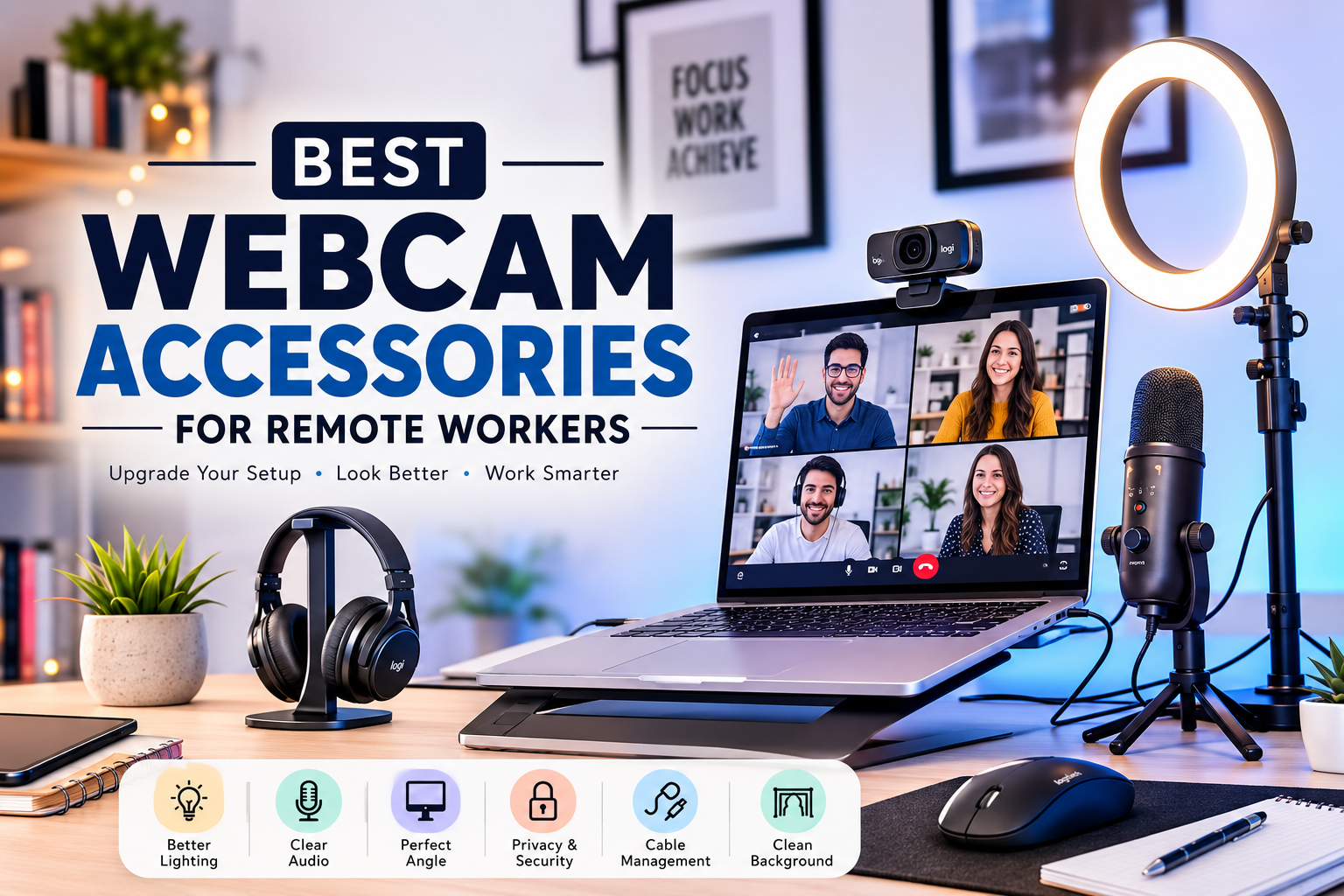
The first time I joined a video meeting from home, I thought my webcam was the problem. Everyone else looked sharp and professional, while my video looked dark, blurry, and oddly unflattering. I spent hours looking at expensive webcams, convinced that buying a new camera would solve everything.
It didn’t.
What actually transformed my video calls were the accessories around the webcam—not the webcam itself. Better lighting, a proper mount, a cleaner background, and even a simple lens cover made a much bigger difference than I expected.
If you work remotely, attend online classes, create content, or spend hours in Zoom or Microsoft Teams meetings, a few affordable accessories can make your setup look more professional while making your daily work more comfortable.
Here are the webcam accessories I’ve found genuinely useful after trying different setups over the past few years.
1. A Ring Light or LED Panel
If you only buy one webcam accessory, make it a light.
I used to rely on the window beside my desk. Some mornings my video looked fantastic. Other days clouds rolled in, and I suddenly looked like I was sitting in a cave.
A small LED light solved that problem instantly.
Why it helps
Webcams perform much better with proper lighting. Even an average webcam can produce surprisingly clear video when your face is evenly lit.
Good lighting also:
- Reduces image noise
- Makes colors look more natural
- Keeps your face visible during long meetings
- Creates a more professional appearance
Ring light vs LED panel
A ring light works well if your desk faces the camera directly.
An LED panel gives you more flexibility because you can place it slightly off to one side for softer, more natural lighting.
For daily office work, I actually prefer a small LED panel mounted beside my monitor.
2. Adjustable Webcam Mount
One mistake I made early on was balancing my webcam on top of stacked books.
It worked…
Until I bumped the desk.
A proper webcam mount lets you position your camera exactly where you want it.
Benefits include:
- Better camera angle
- Less shaking
- Easier adjustment
- Cleaner desk setup
Your webcam should usually sit at eye level.
People rarely realize how much difference camera angle makes until they compare before-and-after screenshots.
3. Laptop Stand
Many people don’t think of a laptop stand as a webcam accessory, but it absolutely is.
Without one, your webcam often points upward from below your face.
That angle isn’t flattering, and it makes meetings feel awkward.
A simple aluminum laptop stand raises your screen so the webcam sits closer to eye level.
Extra benefits include:
- Better posture
- Reduced neck pain
- More desk space
- Improved airflow for the laptop
If you work eight hours a day, this upgrade pays for itself quickly.
4. External Microphone
People forgive average video.
They rarely forgive poor audio.
I once attended a client meeting using only my laptop microphone while my ceiling fan was running.
The client asked me to repeat almost every sentence.
That meeting taught me an important lesson.
A simple USB microphone dramatically improves communication.
Popular options include:
- Blue Yeti
- Fifine USB microphones
- HyperX SoloCast
- Audio-Technica ATR2100x
Even budget microphones usually sound much better than built-in laptop microphones.
5. Webcam Privacy Cover
This accessory costs very little but gives peace of mind.
A webcam cover slides over your camera whenever you’re not using it.
Benefits include:
- Better privacy
- Protection from dust
- Extra security
- Quick access when meetings begin
Many companies encourage employees to use webcam covers, especially when working with sensitive information.
6. USB Hub
Remote work setups quickly become crowded.
My desk eventually included:
- Webcam
- Microphone
- Keyboard
- Mouse
- Headphones
- Ring light
- External drive
My laptop only had two USB ports.
A powered USB hub solved the problem.
It also makes cable management much easier because everything connects through one device.
7. Cable Management Accessories
Nothing ruins a clean workspace faster than tangled cables.
I ignored cable organization for months until I realized I spent several minutes every week untangling charging cables.
Simple accessories like:
- Cable clips
- Velcro straps
- Cable sleeves
- Under-desk cable trays
keep everything organized.
A tidy workspace also looks better if your desk appears in video calls.
8. Neutral Background or Foldable Backdrop
Not everyone has a dedicated home office.
Sometimes your meeting background includes:
- Laundry
- Open shelves
- Kitchen items
- Family movement
A foldable backdrop creates a cleaner, distraction-free appearance.
Neutral colors usually work best:
- White
- Light gray
- Soft blue
Avoid busy patterns that distract viewers.
9. Small Desk Lamp for Side Lighting
Before buying expensive lighting equipment, I experimented with a simple desk lamp.
Surprisingly, it worked well.
Positioning the lamp slightly to one side created softer lighting than pointing it directly at my face.
If you’re on a budget, try adjusting your existing desk lamp before buying specialized lighting.
10. External Monitor
This isn’t technically a webcam accessory, but it improves webcam positioning and productivity.
With an external monitor:
- The webcam sits higher.
- Meetings feel more natural.
- You gain more workspace.
- Multitasking becomes easier.
After adding a monitor, I found myself looking directly at people during meetings instead of constantly staring downward at my laptop screen.
11. Tripod for Flexible Camera Placement
Some webcams include tripod support.
A small desktop tripod lets you move your webcam independently of your monitor.
This is especially useful if you:
- Record presentations
- Teach online classes
- Stream webinars
- Demonstrate products
A tripod also helps create more creative camera angles than monitor-mounted webcams.
12. Anti-Glare Screen Protector
I didn’t realize how much monitor glare affected my meetings until I started working beside a large window.
Bright reflections often made my webcam adjust exposure incorrectly.
An anti-glare screen protector reduces reflections and makes it easier to maintain eye contact during calls.
Step-by-Step: Build a Better Webcam Setup
You don’t need to buy everything at once.
Here’s the order I’d recommend based on real improvements I’ve noticed.
Step 1
Improve your lighting.
This delivers the biggest visual upgrade.
Step 2
Raise your webcam to eye level.
Use either:
- Laptop stand
- Webcam mount
- External monitor
Step 3
Upgrade your microphone.
Clear audio makes meetings feel much more professional.
Step 4
Organize cables.
A cleaner workspace reduces distractions.
Step 5
Improve your background.
Keep it simple and uncluttered.
Step 6
Add privacy accessories.
Install a webcam cover and secure your setup.
Apps That Help Your Webcam Look Better
Accessories aren’t the only improvements worth making.
Several apps help improve video quality and meetings.
Zoom
Offers background blur, lighting adjustments, and HD video settings.
Microsoft Teams
Includes background effects, noise suppression, and camera controls.
Google Meet
Provides automatic lighting correction and background blur.
OBS Studio
Excellent for webinars, presentations, and recording tutorials.
NVIDIA Broadcast
If your computer has a compatible NVIDIA graphics card, this software can remove background noise, blur your background, and improve camera framing using AI.
Common Mistakes Remote Workers Make
I’ve made nearly all of these myself.
Buying an expensive webcam before fixing lighting
Lighting usually improves image quality more than replacing the camera.
Sitting with a bright window behind you
The webcam struggles with strong backlighting.
Face the window instead whenever possible.
Looking at yourself instead of the camera
It feels natural, but it makes eye contact appear awkward.
Try moving the video window closer to the webcam.
Ignoring audio quality
People notice poor sound much faster than slightly soft video.
Cluttered backgrounds
Even a great webcam can’t make a messy room look professional.
Keep the visible area clean and simple.
Who Benefits Most From These Accessories?
These upgrades are useful for almost anyone who spends time on video calls, including:
- Remote employees
- Freelancers
- Customer support agents
- Online tutors
- Sales professionals
- Consultants
- Recruiters
- Content creators
- Students attending virtual classes
Even if you only have a few meetings each week, improving your setup can help you appear more confident and prepared.
Are Expensive Accessories Worth It?
Not always.
Some of the biggest improvements in my own workspace came from inexpensive purchases rather than premium gear.
A modest LED light, an adjustable laptop stand, and a USB microphone made a much larger difference than replacing my webcam with a high-end model.
Instead of chasing the most expensive equipment, focus on solving the biggest problems first. Better lighting, a comfortable camera angle, clear audio, and a tidy background will make almost any webcam perform better. Once those basics are in place, your meetings feel smoother, your setup looks more polished, and you can spend less time worrying about how you appear on screen and more time focusing on the conversation itself.