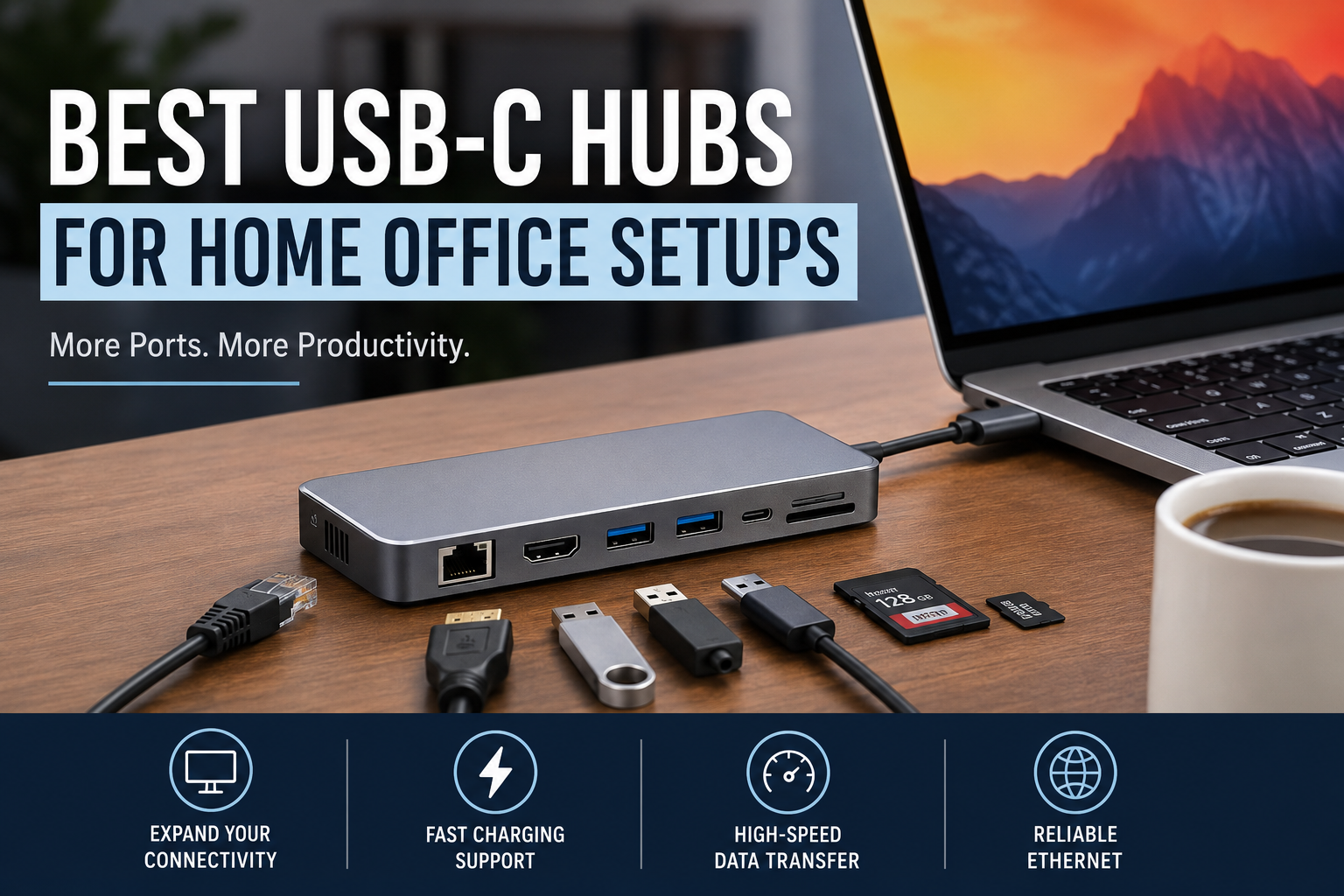
I didn’t realize how much I relied on ports until I bought my first thin-and-light laptop.
It looked great on my desk, it was fast, and the battery lasted all day. Then I tried plugging in my monitor, external SSD, wireless keyboard receiver, webcam, Ethernet cable, and SD card.
I had exactly two USB-C ports.
That was the day I started shopping for a USB-C hub, and honestly, I made a few bad choices before finding one that actually fit my workflow. One hub kept disconnecting my monitor. Another became surprisingly hot after a couple of hours. One even advertised 100W charging but barely kept my laptop battery from draining while I was working.
If you’re building a home office, choosing the right USB-C hub can save you a lot of frustration. The best one isn’t necessarily the most expensive—it’s the one that matches how you actually work.
Let’s go through what really matters.
Why a USB-C Hub Makes a Big Difference
Modern laptops are becoming thinner every year, which usually means fewer ports.
That’s fine if all you do is browse the web, but a home office often includes several accessories at the same time:
- External monitor
- Keyboard
- Mouse
- Webcam
- External SSD
- Ethernet connection
- SD or microSD cards
- Phone charger
- USB microphone
Without a hub, you’re constantly unplugging one device to use another.
Once I switched to a quality hub, my desk became much cleaner. Everything stayed connected, and I only needed one USB-C cable to connect my laptop every morning.
What to Look for Before Buying
Not every USB-C hub is built the same.
Some are designed for travel, while others are better suited for a permanent desk setup.
Here are the features I now check before buying one.
Number of USB Ports
Think about what you already use.
For example, my desk typically has:
- Wireless keyboard receiver
- Mouse receiver
- USB microphone
- External SSD
That’s already four USB ports.
Buying a hub with only two USB-A ports would’ve meant needing another adapter.
It’s always worth getting a little more capacity than you think you’ll need.
HDMI or DisplayPort Support
If you use an external monitor, check the supported resolution and refresh rate.
Many inexpensive hubs advertise HDMI output but only support:
- 4K at 30Hz
That works for watching videos, but working all day at 30Hz feels sluggish.
Look for hubs that support:
- 4K at 60Hz
- Dual monitor support (if needed)
The difference in smoothness is immediately noticeable.
Power Delivery (PD)
This is one feature people often overlook.
Power Delivery allows the hub to charge your laptop while everything else stays connected.
If your laptop charger is 65W or 100W, choose a hub that supports similar power passthrough.
Otherwise, you may notice your battery slowly draining during heavy work.
Ethernet Port
Wi-Fi has improved a lot, but wired Ethernet still wins for:
- Video meetings
- Uploading large files
- Remote desktop work
- Online backups
I only use Wi-Fi when moving around the house.
Whenever I’m at my desk, Ethernet gives a more stable connection.
SD Card Reader
Content creators should definitely look for this.
If you regularly transfer photos or videos from cameras or drones, having built-in SD and microSD slots saves time and keeps your desk free of extra adapters.
Build Quality
This doesn’t sound exciting until you’ve owned a cheap plastic hub.
Metal housings usually:
- Stay cooler
- Feel sturdier
- Last longer
- Handle daily plugging and unplugging better
A slightly higher upfront cost often pays off over time.
Best USB-C Hubs for Home Office Setups
Here are some of the most reliable options worth considering.
1. Anker 565 USB-C Hub
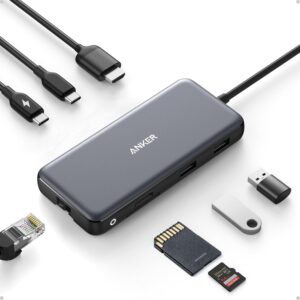
Best overall choice.
This is the hub I recommend most often because it balances features, reliability, and price.
Highlights include:
- Multiple USB-A ports
- USB-C data port
- HDMI
- Ethernet
- SD and microSD reader
- 100W Power Delivery passthrough
It works well for professionals, students, and remote workers.
2. UGREEN Revodok USB-C Hub
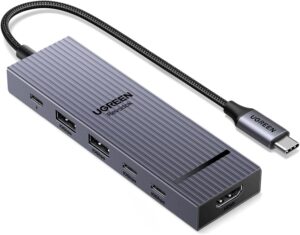
Best value for money.
UGREEN has quietly become one of my favorite accessory brands.
Their hubs generally offer:
- Solid aluminum construction
- Reliable HDMI output
- Fast USB transfers
- Stable charging
If you’re working with one monitor and a few accessories, this is usually enough.
3. Satechi Aluminum Multi-Port Adapter
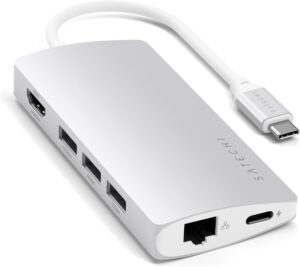
Best for MacBook users.
The design matches Apple laptops perfectly.
It feels premium and is especially useful if you care about keeping your workspace clean and minimal.
It’s not the cheapest option, but the quality is excellent.
4. CalDigit SOHO Dock
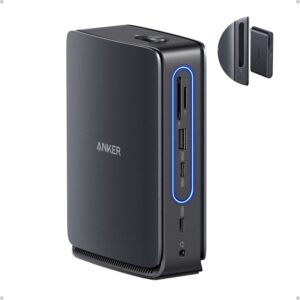
Best for creators.
If you edit photos or videos regularly, this hub offers faster performance than many basic adapters.
Features include:
- High-speed USB ports
- Fast SD reader
- Reliable display support
- Excellent build quality
It costs more, but professionals will appreciate the speed.
5. Baseus 9-in-1 USB-C Hub
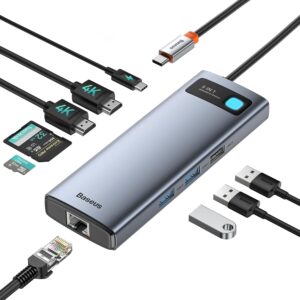
Best budget pick.
Baseus has improved a lot over the past few years.
This hub usually includes:
- HDMI
- Ethernet
- USB ports
- Card reader
- Power Delivery
It’s a good option if you’re building your first home office without spending too much.
My Ideal Home Office Connection Setup
Here’s what stays connected to my hub every day:
- 27-inch monitor
- Mechanical keyboard
- Wireless mouse
- USB microphone
- External SSD
- Ethernet cable
- Laptop charger
Every morning I plug in one USB-C cable.
Within seconds:
- The monitor turns on.
- Internet switches to Ethernet.
- Storage appears.
- Keyboard and mouse connect automatically.
- Charging starts.
That simple routine saves a surprising amount of time over months of work.
Common Mistakes People Make
Buying Only for Today’s Needs
A hub might seem perfect with four ports today.
Then you buy:
- Webcam
- Ring light
- USB headset
- External drive
Suddenly you’re out of ports again.
Leave room for future accessories.
Ignoring Charging Requirements
Some hubs advertise charging support but only pass through limited power.
Always compare:
- Laptop charger wattage
- Hub Power Delivery rating
Matching these avoids slow charging.
Choosing the Cheapest Option
I’ve bought bargain hubs before.
Some worked fine for a week.
Others randomly disconnected my monitor whenever I copied large files to an external SSD.
Reliability matters when you’re using the hub every day.
Forgetting About Heat
Small hubs naturally get warm.
That’s normal.
However, if a hub becomes extremely hot during regular office work, it’s worth considering a better-built model.
Metal enclosures usually handle heat much better than thin plastic ones.
Tips to Get the Best Performance
A few simple habits can make your hub work more reliably.
- Use the original laptop charger whenever possible.
- Connect high-speed SSDs to USB 3.2 or faster ports.
- Keep firmware updated if the manufacturer provides updates.
- Avoid sharply bending the built-in cable.
- Place the hub where air can circulate around it.
These small habits can extend the life of both the hub and your connected devices.
Who Really Needs a USB-C Hub?
A USB-C hub is worth buying if you regularly use:
- Remote work equipment
- Multiple monitors
- Video conferencing accessories
- External storage
- Cameras
- Graphic tablets
- Ethernet
- Memory cards
If all you connect is a mouse, you probably don’t need a large multi-port hub.
But once your desk starts filling with accessories, it quickly becomes one of the most useful purchases you can make.
Final Thoughts
A good USB-C hub doesn’t attract much attention once it’s set up, and that’s exactly what you want. It quietly keeps everything connected so you can focus on work instead of reaching behind your laptop to swap cables all day.
After trying several different hubs over the years, I’ve learned that reliability is worth paying for. Stable monitor output, dependable charging, and enough ports for future upgrades matter far more than having the longest feature list on the box.
If you’re building or upgrading a home office, think about the devices you use every day, count the ports you’ll actually need, and choose a hub that gives you a little room to grow. It’s one of those purchases that makes your workspace feel more organized from the very first day, and you’ll probably wonder how you managed without it.