A few months ago, I was about to join a video meeting when I noticed something that made me stop for a second: the tiny camera at the top of my laptop screen was staring straight back at me.
I knew the webcam wasn’t necessarily recording anything. Still, I started thinking about how often I leave my laptop open while I’m changing clothes, talking to someone in the room, or simply walking away from my desk.
That’s when I started using a webcam privacy cover.
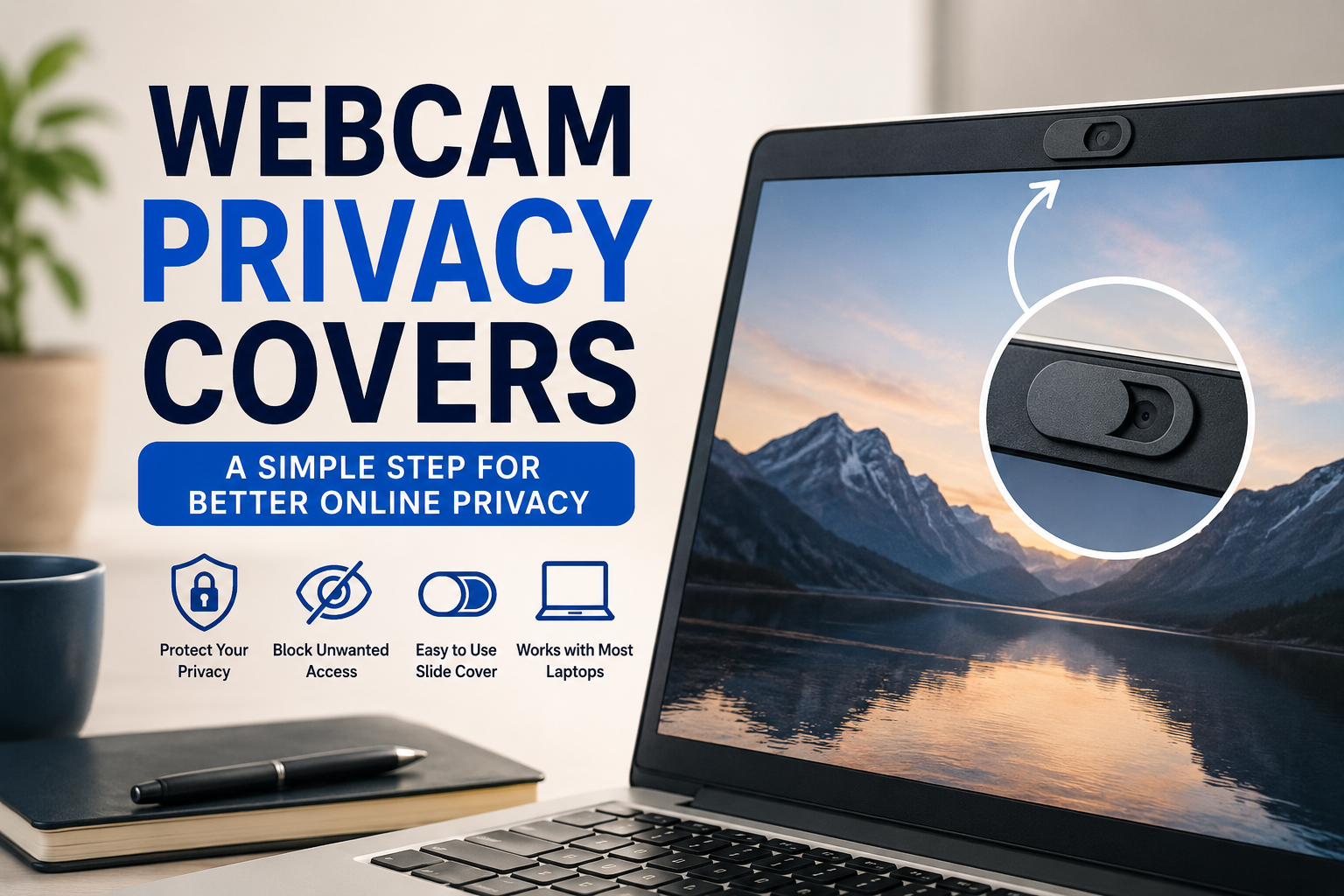
It’s one of those tiny accessories that doesn’t look particularly important until you actually need it. A small sliding cover can physically block the camera when you’re not using it, giving you an extra layer of privacy without changing how you use your laptop.
But there are a few things I learned after trying different covers. Some are too thick, some interfere with the laptop lid, and some cheap adhesive covers can become annoying after a few weeks.
If you’re thinking about buying one, here’s what I would look for.
What Is a Webcam Privacy Cover?
A webcam privacy cover is a small piece of plastic, metal, or another material that attaches over your laptop’s built-in camera.
Most designs use a tiny sliding mechanism. When you want to use the webcam, you slide the cover open. When you’re finished, you slide it closed.
The important thing is that the cover provides a physical barrier between the camera lens and the room.
That’s different from simply relying on software settings.
For example, you can disable camera access in Windows or macOS, but a physical cover gives you a simple visual confirmation: if the cover is closed, the lens is blocked.
It is especially useful for laptops used in bedrooms, home offices, shared spaces, dorm rooms, or other places where you may not always want the camera exposed.
Why I Started Using One
I’ll admit that I originally thought webcam covers were a little unnecessary.
My laptop already has privacy settings. Windows asks for permission before applications can access the camera, and video conferencing apps such as Zoom and Microsoft Teams show when the camera is active.
But software isn’t the only part of the equation.
Sometimes I would close a video call and forget that another application still had camera permissions. Other times, I simply didn’t like the idea of having the camera lens exposed when I wasn’t using it.
The privacy cover solved that small annoyance.
Now, when I’m finished with a meeting, I slide it shut. That’s it.
There’s no setting to check and no app to open.
How Webcam Privacy Covers Actually Help
A privacy cover isn’t a complete cybersecurity solution, and it shouldn’t be treated as one.
It does one specific job very well: it physically blocks the webcam’s view.
That can be useful in several everyday situations.
1. Working From Home
Remote workers often spend hours on laptops.
You might finish a meeting, close the video app, and continue working. If the laptop remains open on your desk, the webcam is still physically exposed.
A cover lets you block the lens whenever you aren’t actively using it.
2. Students and Online Classes
Students using laptops for online classes, tutoring sessions, and video calls can also benefit from a simple camera cover.
It’s particularly useful if the laptop is regularly used in a bedroom or shared living area.
3. Shared Computers
If several people use the same laptop, you may not know which applications have camera permissions enabled.
A physical cover is easy for everyone to understand.
Closed means blocked.
4. Travel
When traveling with a laptop, you may use it in hotels, airports, coworking spaces, or other unfamiliar environments.
A webcam cover doesn’t replace good security practices, but it’s an inexpensive physical privacy measure that takes almost no effort to use.
My Biggest Mistake: Buying the Thickest Cover
The first webcam cover I tried was surprisingly thick.
It looked great in the product photos, but there was one problem I didn’t think about.
My laptop lid couldn’t close completely.
There was a tiny gap where the cover was installed, and that became annoying every time I put the laptop into my bag.
This is one of the most important things to check before buying a webcam privacy cover.
Look for an ultra-thin design.
Modern laptops can have very slim displays. A bulky cover can interfere with the hinge, screen bezel, or lid.
Before purchasing one, check:
- The thickness of the cover
- The size of the adhesive section
- Your laptop’s bezel thickness
- The location of the webcam
- Whether the laptop can fully close afterward
This is especially important for thin laptops such as MacBooks, ultrabooks, and premium Windows notebooks.
Another Lesson: Adhesive Quality Matters
Most webcam covers attach using adhesive.
That’s convenient, but not all adhesive is equal.
A poor-quality cover may start peeling at the corners after a few weeks. Dust can then get underneath it, making the cover look messy.
Before installing one, clean the area around the webcam.
I usually use a soft microfiber cloth to remove fingerprints and dust. The surface should be dry before applying the cover.
Don’t immediately slide the cover around after sticking it down.
Give the adhesive some time to properly bond.
How to Install a Webcam Privacy Cover
Installation usually takes less than a minute, but doing it carefully makes a big difference.
Step 1: Check the Webcam Location
Turn on your laptop and locate the camera.
Make sure you know exactly where the lens sits before removing the adhesive backing.
Some laptops have sensors or microphones close to the camera, so you don’t want to cover something accidentally.
Step 2: Clean the Surface
Use a clean, dry microfiber cloth.
Remove fingerprints, dust, and oil around the camera area.
Avoid applying excessive liquid directly to the screen.
Step 3: Test the Position
Before exposing the adhesive, hold the cover over the webcam.
Check that the opening lines up with the camera when the cover is open.
Also check that the closed position completely blocks the lens.
Step 4: Apply the Cover
Remove the adhesive backing and carefully place the cover over the webcam.
Try to get it straight the first time.
Repeatedly removing and repositioning adhesive can reduce how well it sticks.
Step 5: Test It
Open your preferred camera application.
Windows Camera, Zoom, Microsoft Teams, Google Meet, or another video app will work.
Slide the cover open and confirm that the camera works.
Then close the cover.
The image should immediately become blocked.
That’s a simple way to confirm that you’ve positioned it correctly.
Webcam Covers and MacBooks
MacBook users should be especially careful about thickness.
Apple has previously warned users about closing a Mac notebook with a camera cover or other material placed over the built-in camera because the extra thickness can potentially interfere with the display when the laptop is closed.
If you’re using a MacBook, don’t automatically assume that any webcam cover will be safe.
Look for a very thin design specifically intended for your laptop and consider Apple’s guidance before installing one.
If the cover prevents the lid from closing normally, remove it.
Webcam Covers and Windows Laptops
Windows laptops are generally easier to work with because there is a huge variety of screen designs.
However, bezel sizes vary considerably.
An older laptop may have a thick bezel with plenty of room for a cover. A newer slim laptop might have almost no space around the camera.
Before buying, compare the dimensions of the cover with the webcam area on your specific laptop.
A cover that works perfectly on a Dell or Lenovo laptop may not be ideal for another model.
Do Webcam Privacy Covers Block Microphones?
No.
A webcam privacy cover is designed to block the camera lens.
It doesn’t normally disable or block your laptop’s microphone.
That’s an important distinction.
If you’re concerned about microphone privacy, you need to manage microphone permissions separately through your operating system and individual applications.
On Windows, you can review which apps have access to your microphone and camera through Privacy & security settings.
On macOS, camera and microphone permissions can be reviewed through System Settings.
The physical webcam cover handles the visual side of privacy. Software settings handle permissions.
Using both approaches makes more sense than relying entirely on either one.
Physical Cover vs. Software Privacy Settings
I wouldn’t choose one over the other.
I’d use both.
Think of the webcam cover as the physical lock and software permissions as the digital lock.
For example:
Physical cover: Blocks the camera’s view.
Operating system permissions: Controls which applications can access the camera.
App permissions: Determines whether services such as Zoom or Teams can use the camera.
Security software: Helps protect the computer from malware and other threats.
Each one addresses a different part of the problem.
When You Don’t Need a Webcam Cover
Not everyone needs one.
If you rarely use your laptop camera and already keep the device closed when you’re away from it, a privacy cover may not add much value.
You also don’t need to buy an expensive model.
This is a simple accessory. Paying a premium doesn’t necessarily mean you’ll get dramatically better privacy.
The important things are:
- It completely blocks the lens.
- It stays attached.
- It doesn’t damage the laptop.
- It doesn’t interfere with closing the lid.
- The slider works smoothly.
- It doesn’t obstruct other sensors.
Common Webcam Cover Mistakes to Avoid
Using a Sticker Instead of a Proper Cover
A piece of opaque tape can technically block a webcam, but repeatedly removing it isn’t particularly convenient.
Adhesive residue can also become a problem.
A reusable sliding cover is usually cleaner.
Buying Without Checking Thickness
This was my biggest mistake.
A cover that looks tiny in a product listing can be surprisingly thick in person.
Always check the measurements.
Covering the Wrong Sensor
Some laptops have multiple components around the webcam.
Don’t cover the entire camera area without checking what you’re putting over.
Forgetting About the Laptop Lid
After installation, close the laptop carefully.
Make sure there isn’t unusual pressure against the display.
If the lid doesn’t close normally, the cover is too thick or incorrectly positioned.
Assuming a Cover Makes You Completely Anonymous
It doesn’t.
A webcam cover only blocks the camera’s view.
It doesn’t protect your files, passwords, microphone, browser activity, or online accounts.
Good security still requires strong passwords, software updates, two-factor authentication, careful app permissions, and sensible browsing habits.
A Simple Privacy Routine I Recommend
If you’re working from home, you don’t need a complicated routine.
Here’s what I personally find practical:
Before a video meeting:
- Open the webcam cover.
- Start the video application.
- Check the camera preview.
- Join the meeting.
After the meeting:
- Leave the meeting.
- Close the video application.
- Slide the webcam cover shut.
- Check that the camera lens is physically blocked.
It takes only a few seconds.
That small habit is easier to maintain than constantly wondering which applications currently have camera access.
What to Look for When Buying a Webcam Privacy Cover
If you’re shopping for one, I’d focus less on branding and more on the physical design.
Thin Profile
This is probably the first thing I’d check.
The cover shouldn’t interfere with closing the laptop.
Strong but Removable Adhesive
You want it to stay attached during normal use without making removal unnecessarily difficult.
Smooth Slider
A cheap slider can become loose or difficult to move.
The mechanism should open and close easily with one finger.
Proper Camera Alignment
The opening needs to line up accurately with the webcam.
A cover that sits too far to one side can partially obstruct the camera even when you’re trying to use it.
Suitable Size
Bigger isn’t automatically better.
A small cover can be less noticeable and may work better with laptops that have narrow bezels.
Good Build Quality
You don’t need a luxury accessory, but extremely cheap plastic can crack or lose its adhesive quickly.
A simple, well-designed cover is usually all you need.
Are Webcam Privacy Covers Worth It?
For the price and simplicity, I think they’re worth considering if you regularly use your laptop’s camera.
It’s not because I think every laptop webcam is secretly being watched.
It’s because a physical privacy measure is easy to understand and easy to use.
You don’t have to remember a password or search through settings.
You simply look at the camera.
If the cover is closed, the lens is blocked.
That’s probably the best thing about this little accessory: it turns privacy into a visible habit.
Final Thoughts
I used to think webcam privacy covers were one of those accessories people bought because they looked useful in a tech setup.
After actually using one, I changed my mind.
It’s not a replacement for good cybersecurity, and it won’t solve every privacy concern. But it does one simple job extremely well: it prevents the laptop’s camera from seeing anything when the cover is closed.
If you decide to buy one, don’t just choose the cheapest option you can find. Check the thickness, adhesive, slider quality, camera alignment, and whether your laptop can close properly.
A tiny accessory can be surprisingly useful when it fits your laptop correctly.
And once you get used to sliding the cover shut after every video call, it becomes one of those small habits you barely think about anymore.