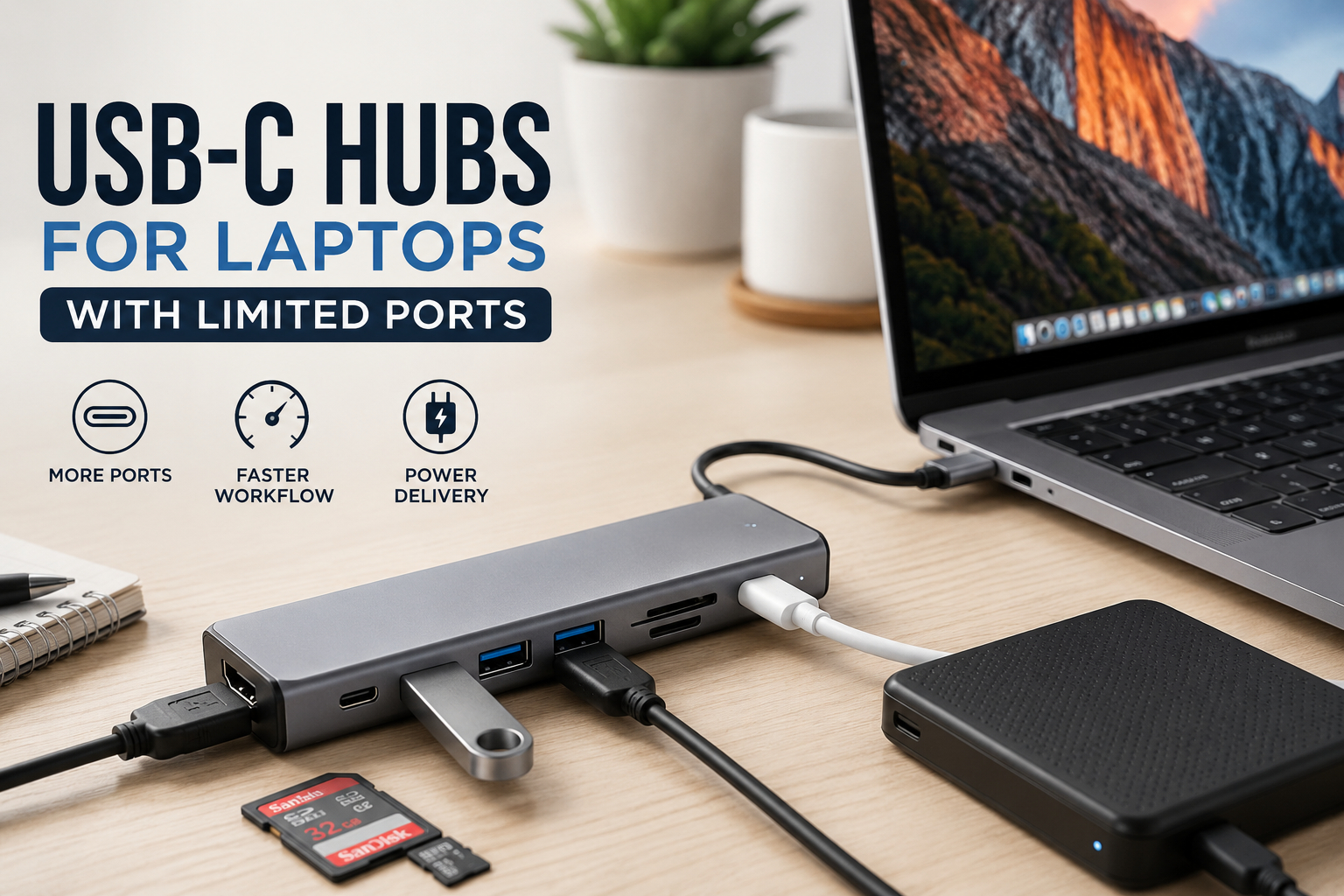
I still remember the first time I tried to set up a laptop with only a couple of USB-C ports. I had a wireless mouse receiver, an external SSD, a USB keyboard, and an HDMI cable ready to connect to a monitor.
Then I looked at the side of the laptop.
Two ports.
That was it.
One was already being used for charging, which left me with a single port for everything else. I ended up unplugging the charger just to connect the SSD, then switching cables again when I needed the monitor. It worked, but it quickly became annoying.
That was when a USB-C hub stopped feeling like an optional accessory and started feeling like something I actually needed.
If your laptop has limited ports, a good USB-C hub can turn one connection into several useful ports. But there are plenty of hubs that look almost identical online while offering very different speeds, display support, power delivery, and reliability.
After dealing with the usual trial-and-error, I learned that choosing one isn’t simply about counting how many ports are listed on the box.
Why Laptops Have Fewer Ports Now
Modern thin laptops often sacrifice traditional ports to keep the body smaller and lighter.
You may get two or three USB-C ports and perhaps a headphone jack. Some laptops still include USB-A, HDMI, or an SD card slot, but others leave them out completely.
That’s convenient when you’re traveling with just the laptop.
The problem starts when you sit down at a desk.
Suddenly, you want to connect:
- A monitor
- Keyboard
- Mouse
- External hard drive
- USB flash drive
- Ethernet cable
- SD card
- Headphones
- Laptop charger
A laptop with limited ports can’t handle all of those directly.
A USB-C hub solves this by connecting to one USB-C port and providing additional connections.
The important part is understanding what those connections actually support.
What Is a USB-C Hub?
A USB-C hub is a small adapter that plugs into your laptop through USB-C and gives you access to additional ports.
Depending on the model, those ports might include USB-A, USB-C, HDMI, DisplayPort, Ethernet, SD card, microSD, and sometimes a headphone connection.
Think of it as a small expansion station for your laptop.
However, not every USB-C hub provides the same features. One inexpensive hub might be excellent for connecting a mouse and keyboard but unsuitable for driving a high-resolution monitor.
That’s why specifications matter.
What Ports Should You Look For?
The right combination depends on what you actually use.
USB-A
USB-A remains useful because so many accessories still use it.
Wireless mouse receivers, keyboards, USB drives, printers, and older external storage devices commonly use USB-A.
If you still have several older accessories, having two or three USB-A ports can be more useful than having a huge collection of ports you rarely use.
USB-C
Having an additional USB-C port can be useful, but check what it does.
Some hubs include USB-C ports only for charging. Others support data transfer. A few may support video output through USB-C, depending on the laptop and hub.
Don’t assume every USB-C port on a hub works the same way.
HDMI
If you connect your laptop to an external monitor or television, HDMI can be extremely convenient.
I particularly like having HDMI on a hub because it means I can leave the monitor cable permanently connected to the hub instead of reaching behind the laptop every time.
But check the supported resolution and refresh rate before buying.
A hub advertised as supporting HDMI doesn’t automatically mean it will handle every monitor configuration.
Ethernet
Wi-Fi is convenient, but a wired Ethernet connection can still be valuable at a desk.
If you work with large files, use a desktop-style setup, or simply want a physical network connection, an Ethernet port can save you from needing another adapter.
SD and microSD
These ports are particularly useful for photographers, video editors, and anyone who regularly moves files from cameras or other devices.
If you don’t use memory cards, however, you may be better off choosing a hub with more USB ports instead.
The Most Important Thing: Check Your Laptop’s USB-C Port
This is one of the mistakes I wish I’d avoided earlier.
USB-C describes the physical connector. It doesn’t automatically tell you what the port can do.
Depending on the laptop, a USB-C port may support charging, data transfer, video output, or several of these functions together.
Before buying a hub, check your laptop’s specifications or user manual.
Look for information about:
- USB data speed
- Display output
- USB Power Delivery
- Thunderbolt
- USB4
- Supported external displays
For example, if you want to connect an HDMI monitor through a USB-C hub, your laptop needs to support the appropriate video-output functionality.
Otherwise, the hub may have an HDMI port that doesn’t solve your particular problem.
USB-C Hub vs. Docking Station
These terms are sometimes used interchangeably, but there is a practical difference.
A compact USB-C hub is generally designed for portability. You can throw it into a laptop bag and use it whenever you need additional ports.
A docking station is usually larger and intended to stay on your desk.
A docking station may offer more connections, multiple display outputs, networking, audio, and higher power capabilities.
For a student or someone who works from different locations, a compact hub usually makes more sense.
For a permanent home-office setup with two monitors, Ethernet, external storage, and other accessories, a proper docking station may be worth considering.
How I Would Choose a USB-C Hub
Instead of starting with the cheapest option, I’d start with the devices I actually need to connect.
Make a quick list.
For example:
My desk setup:
- Laptop charger
- HDMI monitor
- USB keyboard
- Wireless mouse
- External SSD
- Ethernet
That immediately tells me that I need more than just two USB ports.
I’d look for a hub with HDMI, multiple USB ports, Ethernet, and USB-C Power Delivery.
This approach is much better than buying a hub because it has “10 ports” printed on the product page.
You might never use half of them.
Pay Attention to USB Speeds
This is another area where product descriptions can be confusing.
You may see terms such as USB 3.0, USB 3.2 Gen 1, USB 3.2 Gen 2, or similar specifications.
The practical question is simple:
How quickly will I be moving files?
If you’re only connecting a mouse or keyboard, speed isn’t particularly important.
If you’re regularly transferring large video files to an external SSD, it matters much more.
A fast SSD connected through a slow hub can become a frustrating bottleneck.
And there’s another detail worth remembering: the speed of the hub doesn’t automatically guarantee that your entire setup will run at that speed. The laptop’s USB port, the hub, the cable, and the connected device all play a role.
Don’t Ignore Power Delivery
If your laptop charges through USB-C, look for a hub that supports USB-C Power Delivery if you want to charge through the hub.
This allows the charger to connect to the hub while the hub remains connected to the laptop.
It’s one of the features that makes a desk setup much cleaner.
Instead of constantly swapping cables, you can have something like this:
Wall charger → USB-C hub → laptop
Meanwhile, the monitor, keyboard, mouse, and storage can remain connected to the hub.
One thing to watch for is the hub’s maximum power-delivery capability. A hub might advertise Power Delivery while still having limitations on how much power reaches the laptop.
Check your laptop’s charging requirements and the hub’s specifications before assuming they’re a perfect match.
A Practical Home Office Setup
Here’s a simple example.
Imagine you have a laptop with two USB-C ports.
You connect your charger to one.
The other is connected to a USB-C hub.
The hub provides:
- HDMI for a monitor
- USB-A for keyboard
- USB-A for mouse receiver
- USB-C data for an external SSD
- Ethernet for wired internet
Now your laptop only needs one free connection to handle your entire desk.
This is particularly useful if you regularly move your laptop.
When you’re finished working, you can disconnect one USB-C cable instead of unplugging five different accessories.
That small change makes a bigger difference than I expected.
USB-C Hubs Are Great for Travel Too
A hub isn’t only useful at a desk.
If you travel with a laptop, a compact hub can eliminate the need to carry several separate adapters.
For example, you might arrive at a hotel or meeting room and need to connect the laptop to a projector or external display.
Or you might need to copy files from a USB drive.
Instead of carrying separate HDMI, USB, and card-reader adapters, one compact hub can handle several of those tasks.
I would still avoid buying the biggest hub available for travel.
More ports usually mean a larger device and more cables.
For a travel setup, choose the smallest hub that covers your actual needs.
Common Mistakes to Avoid
1. Buying Based Only on the Number of Ports
A 12-in-1 hub isn’t automatically better than a 6-in-1 model.
If most of those ports are irrelevant to you, you’re simply paying for extra features.
Choose based on your devices.
2. Assuming Every USB-C Port Supports Video
This is a big one.
USB-C is the connector shape, not a guarantee of identical functionality.
Check your laptop’s specifications.
3. Ignoring Display Specifications
If you’re buying a hub specifically for a monitor, don’t stop at “HDMI included.”
Check the supported resolution and refresh rate.
Your monitor might work, but not at the resolution or refresh rate you expected.
4. Forgetting About Heat
Small hubs can become warm, especially when several ports are being used simultaneously.
Some warmth isn’t necessarily a problem, but I wouldn’t hide a hub under papers, clothing, or other objects where airflow is restricted.
Give it some breathing room.
5. Using a Cheap, Poor-Quality Cable
The hub isn’t the only part of the connection.
The USB-C cable matters too.
A cable may physically fit while lacking the bandwidth or power capabilities needed for your setup.
If you’re troubleshooting inconsistent performance, don’t automatically blame the hub.
Try another compatible cable.
6. Expecting Every Device to Work at Full Speed Simultaneously
A hub connects multiple devices through one laptop port.
That means you’re sharing the capabilities of that connection.
If you’re transferring large files from an external SSD while using several other high-bandwidth devices, performance may not match what you’d get by connecting the SSD directly to the laptop.
For everyday office accessories, this usually isn’t a major concern.
For demanding storage and video workloads, it deserves more attention.
What to Check Before Buying
Here’s the checklist I’d use today:
Compatibility
Make sure the hub works with your laptop’s operating system and USB-C implementation.
Required Ports
Write down exactly what you need: USB-A, USB-C, HDMI, Ethernet, SD, audio, or something else.
Data Speed
Look at the actual USB data specifications rather than relying on vague phrases such as “high speed.”
Display Support
Check resolution, refresh rate, and the number of displays supported.
Power Delivery
If you want to charge your laptop through the hub, verify the supported power-delivery specification.
Size
For travel, smaller is generally more convenient. For a permanent desk setup, extra ports may be worth the larger size.
Build Quality
A hub gets plugged in and unplugged frequently. A flimsy connector or poorly made cable can become irritating very quickly.
Warranty and Support
A reputable manufacturer with reasonable warranty and support can be worth paying a little more for.
When You Don’t Actually Need a USB-C Hub
A hub isn’t necessary for everyone.
If your laptop already has enough ports for your daily setup, adding another accessory may just create clutter.
You also don’t necessarily need one if you rarely connect external devices.
For example, someone who mainly uses a laptop by itself for browsing, writing, streaming, or basic office work may have little reason to carry a hub.
The value becomes obvious when your accessories start competing for the same limited ports.
A Simple Setup Strategy
If you’re buying your first hub, here’s how I’d approach it.
Step 1: List your accessories.
Write down everything you regularly connect.
Step 2: Identify your laptop’s available ports.
Don’t assume that all USB-C ports have identical capabilities.
Step 3: Decide whether the hub is for travel or a desk.
Travel favors compactness.
A desk setup may benefit from more ports.
Step 4: Identify your highest-demand device.
This might be an external SSD, high-resolution monitor, Ethernet connection, or another demanding peripheral.
Make sure the hub supports that device properly.
Step 5: Check power requirements.
Especially if you plan to charge the laptop through the hub.
Step 6: Leave some room for future accessories.
You don’t need a massive hub, but having one spare USB port can be surprisingly useful.
My Biggest Lesson With USB-C Hubs
The biggest lesson for me was simple: don’t shop for the most impressive-looking specification sheet. Shop for the setup you’re actually trying to build.
A hub with fewer ports can be the better purchase if those ports are exactly what you need.
I also learned that compatibility should come before convenience.
It’s easy to see an inexpensive hub with HDMI, Ethernet, card readers, USB ports, and Power Delivery and assume it will solve everything.
But your laptop’s capabilities determine what you can actually use.
Spend a few minutes checking the laptop specifications before ordering, and you’ll avoid a lot of unnecessary frustration.
Final Thoughts
A USB-C hub can make a laptop with limited ports feel much more practical.
The biggest benefit isn’t simply having more connectors. It’s being able to create a setup that works without constantly swapping cables.
For a home office, a hub can connect your monitor, keyboard, mouse, storage, Ethernet, and charger through a single connection.
For travel, it can replace several small adapters in your laptop bag.
Just don’t choose one based on the number of ports or the lowest price alone.
Think about your actual devices, check what your laptop’s USB-C ports support, pay attention to display and data specifications, and make sure the power-delivery capabilities match your needs.
Once you find the right combination, that little USB-C hub can become one of those accessories you stop noticing — because everything simply works the way you want it to.