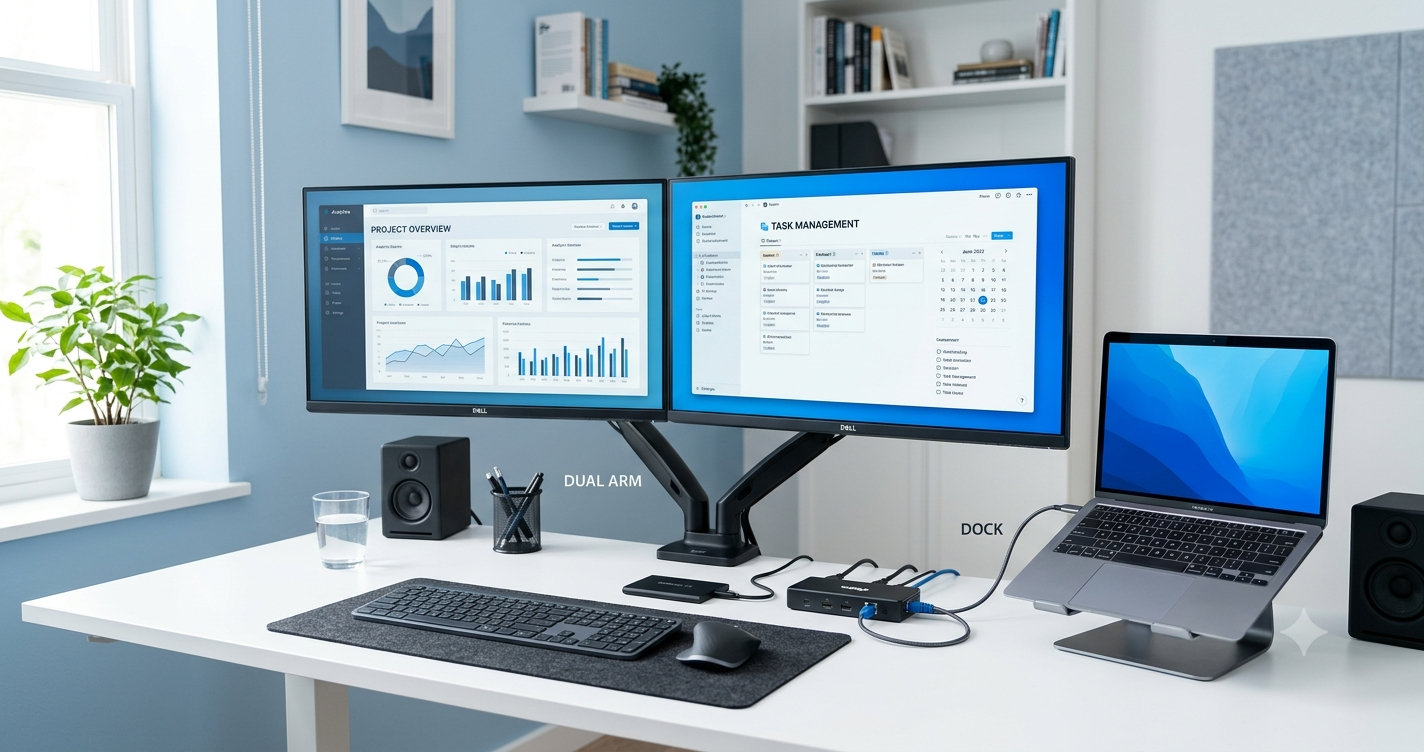
The first time I tried working from a laptop full-time, I thought I had everything I needed. A decent laptop, an external monitor, a wireless keyboard, and a mouse. It looked like the perfect setup.
The reality was much less enjoyable.
Every morning started the same way. I plugged in the charger, connected the HDMI cable, attached a USB receiver, connected an external SSD, and finally inserted an Ethernet cable whenever my Wi-Fi decided to slow down. At the end of the day, I unplugged everything again because I needed my laptop elsewhere.
It only took a couple of weeks before I realized I was wasting several minutes every day just dealing with cables.
That was when I bought my first laptop docking station.
It wasn’t the most exciting purchase I’ve ever made, but it ended up being one of the most useful upgrades I’ve made for my workspace. Fast forward to 2026, docking stations have become even better. They support faster charging, multiple high-resolution monitors, high-speed storage, and cleaner desk setups than ever before.
If you’re wondering whether a docking station is worth buying, here’s everything I’ve learned from using one.
What Is a Laptop Docking Station?
A laptop docking station is a device that expands the number of ports available on your laptop.
Instead of plugging five or six cables directly into your laptop, everything connects to the docking station. Then a single USB-C or Thunderbolt cable connects the dock to your laptop.
One cable can handle:
- Charging
- External displays
- USB accessories
- Ethernet
- Audio
- External storage
- SD card readers
It turns your laptop into something that feels much closer to a desktop computer without losing portability.
Why Docking Stations Matter More in 2026
Laptop manufacturers continue making thinner devices.
That looks great until you realize your expensive laptop only has two USB-C ports.
Many popular laptops now depend heavily on USB-C or Thunderbolt, including:
- MacBook Air
- MacBook Pro
- Dell XPS
- Lenovo ThinkPad X1
- HP Spectre
- ASUS Zenbook
- Microsoft Surface Laptop
As monitors, webcams, SSDs, microphones, and other accessories become common, running out of ports happens quickly.
A docking station solves that problem without carrying a bag full of adapters.
My Favorite Benefit: A One-Cable Desk Setup
The biggest improvement wasn’t extra ports.
It was simplicity.
Now when I sit down to work, I plug in one cable.
Immediately I have:
- Dual monitors
- Full-size keyboard
- Wireless mouse
- Speakers
- External SSD
- Charging
- Ethernet
Everything works within seconds.
When I need to leave, I unplug one cable and take the laptop with me.
That convenience sounds small until you’ve experienced it every day.
Who Actually Needs a Docking Station?
Not everyone needs one.
If you mostly browse the web from your couch, you probably won’t benefit much.
But docking stations are incredibly useful if you regularly work at a desk.
Some examples include:
Remote workers
Home office setups often include multiple monitors, webcams, microphones, and Ethernet connections.
Students
A laptop dock makes it easy to connect a monitor, printer, keyboard, and external drive without constantly switching cables.
Content creators
Video editors and photographers usually connect:
- Fast SSDs
- SD cards
- Color-accurate monitors
- Audio interfaces
A dock keeps everything organized.
Programmers
Developers often work with two or three displays while using wired internet for stable connections.
Business professionals
Video meetings, presentations, and multitasking become much easier with a complete desktop setup.
Features Worth Looking For in 2026
Not every docking station offers the same capabilities.
These are the features I’d prioritize today.
USB-C or Thunderbolt Support
Thunderbolt 4 and USB4 continue to dominate premium laptops.
They offer:
- High-speed data transfer
- Video output
- Power delivery
- Daisy chaining on compatible devices
If your laptop supports Thunderbolt, buying a compatible dock gives you more room to grow.
Enough Display Outputs
Think about your future setup.
Do you want:
- One monitor?
- Two monitors?
- Three monitors?
Many newer docks support:
- HDMI
- DisplayPort
- USB-C Display Output
Always check your laptop’s display limitations before buying.
Fast Charging
Many docking stations now deliver between 65W and 140W of power.
That means your laptop charges while you work.
No separate charger needed.
Plenty of USB Ports
I underestimated how quickly USB ports disappear.
My desk currently uses:
- Keyboard
- Mouse
- Webcam
- Microphone
- External SSD
- USB light
Having six or more USB ports is surprisingly useful.
Ethernet
Wi-Fi has improved a lot.
But whenever I’m downloading large files or attending long meetings, wired internet still feels more reliable.
A Gigabit or faster Ethernet port is worth having.
SD and MicroSD Card Readers
If you work with cameras, drones, or action cameras, built-in card readers save both time and desk space.
USB Hub vs Docking Station
People often confuse these.
Here’s the difference.
A USB hub mainly adds extra USB ports.
A docking station acts like an expansion center.
It usually includes:
- Video outputs
- Ethernet
- Charging
- Audio
- SD readers
- Multiple USB ports
If all you need is two extra USB ports, a hub is enough.
If you want a complete workstation, a docking station is the better investment.
Setting Up a Docking Station
The first setup usually takes less than ten minutes.
Here’s the process I recommend.
Step 1
Place the docking station somewhere easy to reach.
Mine sits behind my monitor to keep cables hidden.
Step 2
Connect your monitor or monitors.
Use HDMI or DisplayPort depending on your equipment.
Step 3
Plug in your accessories.
Examples include:
- Keyboard
- Mouse
- Webcam
- Speakers
- External drives
Step 4
Connect Ethernet if available.
Step 5
Connect the dock to your laptop using the supplied USB-C or Thunderbolt cable.
Most operating systems detect everything automatically.
Common Mistakes I Made
Buying my first dock taught me a few lessons.
I ignored power delivery.
My first dock couldn’t charge my laptop.
I still had to connect the original charger.
Now I always check the charging wattage.
I bought too few ports.
I assumed four USB ports would be enough.
A few months later, every port was occupied.
Buying slightly more than you currently need saves frustration later.
I forgot about monitor resolution.
Not every dock supports dual 4K displays.
Some support only one external monitor at full resolution.
Always match the dock to your display requirements.
I used a cheap USB-C cable.
This one surprised me.
A low-quality cable caused display flickering and slow charging.
Using the cable included with the dock fixed the issue immediately.
Docking Stations for Different Types of Users
For casual users
A compact USB-C dock with HDMI, charging, and a few USB ports is usually enough.
For office work
Look for:
- Dual monitor support
- Ethernet
- Power delivery
- Multiple USB-A ports
For creative professionals
Prioritize:
- Thunderbolt support
- Fast storage speeds
- Multiple display outputs
- SD card reader
For gamers
Many gamers prefer connecting directly to the GPU on desktop PCs, but laptop gamers can still benefit from docks for accessories, Ethernet, and external displays. Just make sure the dock supports the refresh rates and resolutions you plan to use.
Keeping Your Desk Organized
One unexpected benefit was cable management.
Instead of cables running everywhere, nearly everything connects to the dock.
Using a few simple accessories helps even more:
- Cable sleeves
- Velcro cable ties
- Under-desk cable trays
- Monitor arms
- Wireless peripherals
The desk not only looks cleaner but is also easier to keep dust-free.
Are Expensive Docking Stations Worth It?
Not always.
The best choice depends on your laptop and how you work.
If you only connect one monitor and a keyboard, a budget-friendly USB-C dock may handle everything you need.
If you’re running multiple 4K monitors, transferring huge video files, and charging a high-performance laptop at the same time, spending more on a quality Thunderbolt dock usually pays off with better performance and reliability.
Think about the accessories you use today—and the ones you might add over the next couple of years. Buying a dock with a little extra capacity often ends up being more economical than replacing it later.
Final Thoughts
A docking station probably isn’t the first accessory people think about when upgrading a workspace. Monitors, keyboards, and ergonomic chairs usually get all the attention.
But after using one daily, I’d put a good docking station near the top of the list for anyone who regularly works from a laptop.
The biggest advantage isn’t the extra ports—it’s removing friction from your daily routine. Sitting down, plugging in a single cable, and having your entire workspace ready in seconds makes work feel smoother and more enjoyable.
If you’re constantly swapping cables, juggling adapters, or wishing your laptop had “just one more port,” a quality docking station can quietly solve all of those problems. It’s one of those upgrades you don’t fully appreciate until you use it every day.