I used to think keyboard comfort was mostly about getting used to whatever keyboard was already sitting on my desk.
That changed after a few weeks of long workdays. Between writing, researching, answering emails, and constantly switching between browser tabs, I started noticing that my hands and wrists felt tired by the end of the day. Nothing dramatic happened. It was more of an annoying stiffness that made me want to stop typing earlier than usual.
My first solution was simple: I bought a keyboard that looked comfortable.
That turned out to be a mistake.
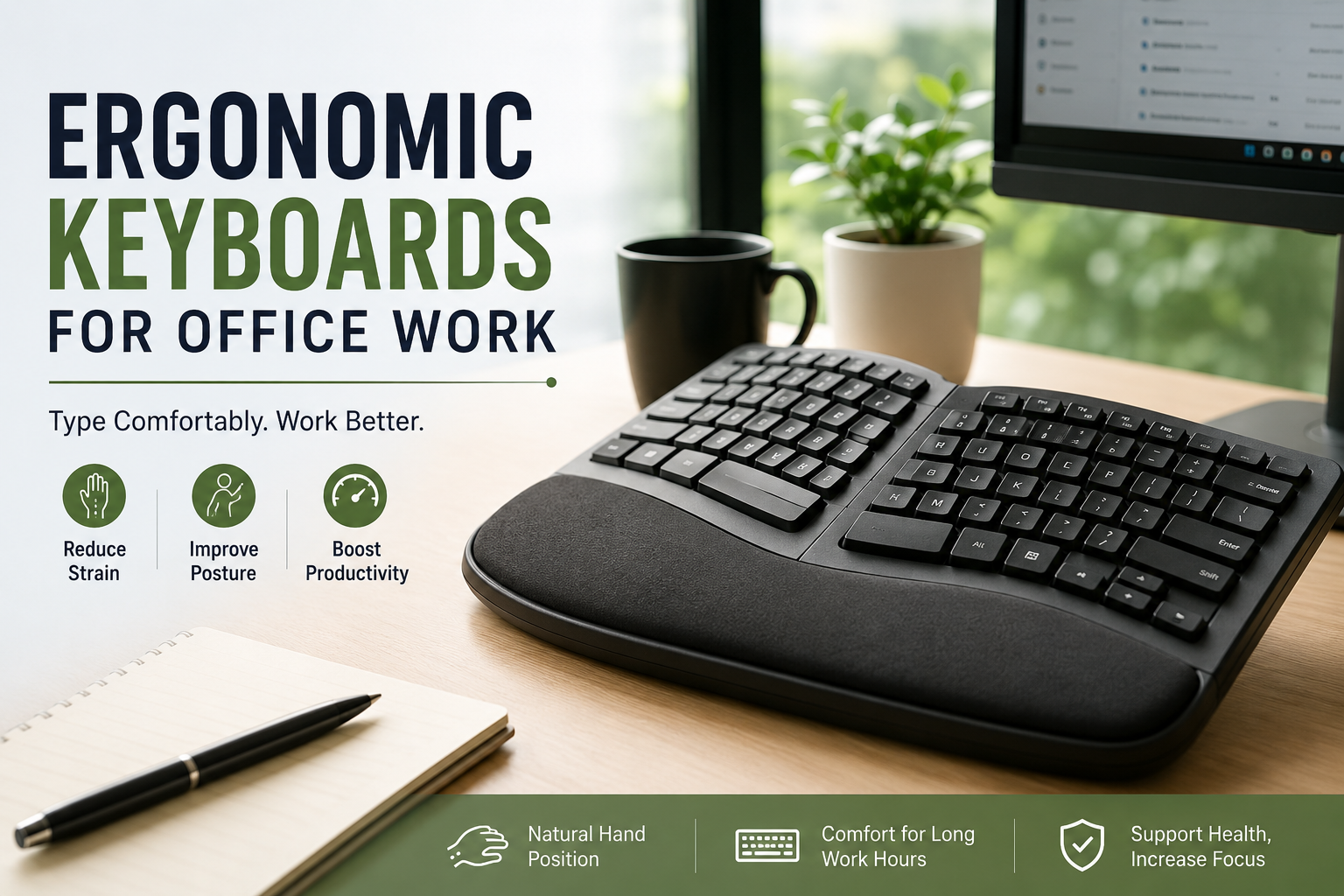
The keyboard had a soft wrist rest and a strange curved shape, but after several days, I still wasn’t comfortable. Eventually, I realized that an ergonomic keyboard isn’t automatically better just because it looks ergonomic. The layout, key feel, keyboard height, desk position, and even how you type all make a difference.
If you spend several hours a day working at a computer, choosing the right keyboard can make your workspace noticeably more comfortable. But you don’t necessarily need the most expensive model or the most unusual design.
Here’s what I’ve learned about choosing an ergonomic keyboard for office work.
What Makes a Keyboard Ergonomic?
An ergonomic keyboard is designed to make typing more comfortable by encouraging a more natural position for your hands, wrists, and arms.
Traditional keyboards are usually straight and relatively narrow. Depending on your posture and typing style, this can cause your hands to angle inward toward the keyboard.
Ergonomic designs can approach the problem differently.
Some keyboards are slightly curved. Others split the left and right sections so you can position each hand independently. Some have a gentle tented angle, while others simply use a more comfortable key layout and lower typing height.
The important point is that ergonomic doesn’t mean one specific shape.
A keyboard that feels fantastic to one person may feel awkward to another.
That’s why trying to understand your own typing habits is more useful than simply choosing a keyboard because it has “ergonomic” in its product description.
Why Ergonomics Matter During Office Work
Office work often involves repetitive movements.
You may type reports, enter data into spreadsheets, write emails, edit documents, use Slack or Microsoft Teams, and switch between applications throughout the day.
The keyboard itself is only one part of the setup, but it is one of the devices your hands interact with constantly.
A comfortable keyboard can make long typing sessions feel less tiring. It may also encourage you to pay more attention to your wrist and arm position.
However, it’s important not to expect a keyboard to solve every discomfort problem.
Your chair, desk height, monitor position, mouse, typing technique, and regular breaks matter too.
My Biggest Mistake: Choosing Comfort Features Without Checking the Layout
One of the first things I looked for was a padded wrist rest.
It seemed logical. More padding must mean more comfort, right?
Not necessarily.
A wrist rest can be useful when positioned correctly, but if it is too high, too hard, or encourages you to keep your wrists pressed down while typing, it may not feel good.
I also learned that keyboard layouts can take some adjustment.
A split ergonomic keyboard, for example, can feel strange during the first few days. Your hands may suddenly be farther apart than you’re used to. Some models also move commonly used keys or use unconventional designs.
The lesson was simple: don’t judge an ergonomic keyboard by its appearance or accessory list. Think about how you’ll actually use it.
Different Types of Ergonomic Keyboards
There isn’t one perfect ergonomic keyboard design. Here are the main types you’ll encounter.
1. Curved or Contoured Keyboards
These keyboards use a curved layout instead of a completely straight row of keys.
They are often an easy transition for someone who has only used conventional keyboards.
The learning curve is generally smaller because the basic keyboard layout remains familiar.
This can be a good starting point if you want something more comfortable without completely changing how you type.
2. Split Keyboards
Split keyboards separate the left and right sides of the keyboard.
Instead of forcing both hands into a fixed position, you can move each half to a position that feels natural.
This is one of the biggest differences you’ll notice when switching from a normal keyboard.
At first, it can feel surprisingly awkward.
I remember reaching for keys almost automatically and realizing my hands were no longer where my muscle memory expected them to be.
Give yourself time.
If you type quickly for work, don’t immediately switch to an ergonomic keyboard before an important deadline. Spend some time learning the layout first.
3. Tented Keyboards
Some ergonomic keyboards angle the two sides upward toward the center.
This is called tenting.
The idea is to reduce the amount of sideways rotation your hands need while typing.
Different keyboards offer different degrees of tenting, and some allow you to adjust the angle.
Adjustability can be especially useful because small changes can make a surprisingly big difference in comfort.
4. Low-Profile Ergonomic Keyboards
If you dislike tall mechanical keyboards, a low-profile ergonomic model may be more appealing.
These keyboards generally have shorter keys and a flatter design.
They’re also often easier to move between a home office and another workspace.
For general office work, low-profile keys can provide a familiar laptop-like experience while offering a more desktop-oriented typing setup.
Features Worth Paying Attention To
When you’re comparing ergonomic keyboards, don’t get distracted by a huge list of specifications.
Focus on the features that affect your everyday experience.
Adjustable Layout
If you’re considering a split keyboard, being able to adjust the distance and angle between the two sections can be extremely useful.
A fixed design may work perfectly for you, but adjustability gives you more room to find your preferred position.
Key Feel
This is something you should take seriously.
Some people prefer soft, quiet keys. Others like mechanical switches with a more noticeable click or tactile response.
For an office environment, noise can also matter.
A keyboard that sounds great in a gaming room might become irritating when you’re typing next to coworkers.
If you work from home, noise may be less of an issue.
Wrist Support
A wrist rest can make a setup more comfortable, but it shouldn’t become an excuse to keep your wrists bent or heavily pressed against the desk.
Think of it as support for resting rather than something you need to push against while typing.
Wired vs. Wireless
Wireless keyboards make desk organization easier.
There are fewer cables crossing your workspace, and you can move the keyboard when needed.
However, wired keyboards are simple and don’t require charging.
For a permanent office desk, either option can work. I would choose based on your preference rather than assuming one is automatically more ergonomic.
Mac and Windows Compatibility
If you switch between a Windows PC and a Mac, check the key layout before buying.
Some ergonomic keyboards are designed primarily around one operating system, while others support both.
Look for dedicated Windows and Mac keys or software that allows you to customize the layout.
Ergonomic Keyboards Can Have a Learning Curve
This is probably the biggest thing people underestimate.
You can buy a keyboard that looks incredibly comfortable and still feel frustrated during the first week.
Your fingers already have years of muscle memory.
When the position of Enter, Backspace, Ctrl, Shift, or other keys changes, your brain needs time to adapt.
Don’t assume the keyboard is bad just because you’re making mistakes on day one.
Give yourself several days of normal use.
If you’re moving to a completely different split layout, you may need longer.
One practical trick is to use typing practice websites for a few minutes each day. You don’t need an intense training program. Just practice normal words and sentences until your fingers start finding the keys naturally.
How to Set Up an Ergonomic Keyboard Correctly
Buying the keyboard is only half the job.
Your setup matters just as much.
Step 1: Keep the Keyboard at a Comfortable Height
Your shoulders should be relaxed rather than raised toward your ears.
Your elbows should generally stay close to your body, and your forearms should feel supported without being forced into an awkward angle.
Step 2: Don’t Place the Keyboard Too Far Away
If the keyboard is pushed toward the back of a deep desk, you may have to reach forward constantly.
That can make your shoulders and arms work harder than necessary.
Keep it close enough that you can type without stretching your arms.
Step 3: Adjust the Angle
Don’t automatically use the keyboard’s highest rear feet.
Many people assume the raised angle is more comfortable, but your preferred position may actually be flatter.
Try different positions for a few days.
Step 4: Position Your Mouse Properly
There’s little point in creating a comfortable keyboard setup if your mouse is sitting far away.
Keep the mouse close enough that you aren’t constantly reaching sideways.
If you frequently use a mouse, its shape and size deserve just as much attention as the keyboard.
Step 5: Take Regular Breaks
Even the best keyboard doesn’t eliminate repetitive computer work.
Stand up occasionally, change position, stretch gently, or simply step away from the screen for a few minutes.
Short breaks can also give your hands a chance to relax.
Ergonomic Keyboard Features for Different Office Jobs
Your ideal keyboard depends heavily on what you actually do.
Writers and Content Creators
If most of your day involves writing, key feel and typing comfort should be your priorities.
You may also appreciate a quieter keyboard if you work around other people.
A layout that makes frequent punctuation and shortcut keys easy to reach can save frustration during long writing sessions.
Programmers
Programmers often use keyboard shortcuts, symbols, function keys, and navigation keys constantly.
A highly unusual layout might slow you down at first.
Look for a design that provides easy access to the keys you use regularly.
Programmable keys can also be useful if your keyboard software supports them.
Spreadsheet and Data Entry Workers
If you work extensively in Microsoft Excel or Google Sheets, pay attention to navigation keys and the number pad.
A compact ergonomic keyboard might save desk space, but removing the number pad isn’t necessarily a good trade if you enter numerical data all day.
Customer Support and Administrative Work
For people who spend hours writing emails, filling forms, and working inside browser-based applications, a comfortable conventional-style ergonomic keyboard may be more practical than an extreme split design.
You may benefit more from a familiar layout, quiet keys, and good wrist positioning than from advanced customization.
Common Mistakes to Avoid
Buying the Most Expensive Keyboard
Price doesn’t guarantee comfort.
A $200 keyboard that doesn’t fit your hands is still the wrong keyboard.
Assuming More Padding Is Better
A thick wrist rest isn’t automatically more comfortable.
Pay attention to your overall wrist and hand position instead.
Changing Everything at Once
If you buy a new keyboard, mouse, chair, and desk at the same time, it becomes difficult to know what’s helping or causing problems.
Change one major part of your setup at a time when possible.
Giving Up After One Day
This is particularly common with split keyboards.
The first few days may feel strange because your muscle memory is fighting the new layout.
Give yourself a reasonable adjustment period.
Ignoring the Rest of Your Desk
An ergonomic keyboard can’t compensate for a monitor that’s too low, a chair that’s poorly adjusted, or a desk that’s the wrong height.
Think about the entire workstation.
How to Choose the Right Ergonomic Keyboard
If I were buying one for office work today, I’d use this simple process.
1. Start with your typing habits.
Ask yourself how many hours you type each day and which keys you use most.
2. Decide how much change you want.
If you’re nervous about learning a new layout, start with a curved or conventional-style ergonomic keyboard.
If you’re willing to experiment, consider a split model.
3. Think about your workspace.
For a shared office, quiet keys may matter.
For a small desk, wireless or compact designs may be useful.
For spreadsheet-heavy work, a number pad could be important.
4. Check operating-system support.
Make sure the keyboard works properly with your computer and supports the shortcuts you rely on.
5. Look for customization if you need it.
Some keyboards let you remap keys, create shortcuts, or save different profiles using their companion software.
This can be valuable if you use several applications throughout the day.
6. Buy from somewhere with a sensible return policy.
This is one of the most practical tips I can give.
You can’t always tell whether a keyboard fits your hands from product photos.
If possible, choose a seller that allows returns or exchanges.
Do You Really Need an Ergonomic Keyboard?
Not necessarily.
If your current keyboard is comfortable, your posture is good, and you can work for hours without feeling unusually tired, there’s no rule saying you need to replace it.
An ergonomic keyboard is a tool, not a requirement.
The real goal is to create a workstation where you can work comfortably and maintain a relaxed position.
Sometimes the best improvement isn’t buying another gadget. It might be lowering your keyboard, moving your mouse closer, adjusting your chair, or taking more regular breaks.
Final Thoughts
My experience with ergonomic keyboards taught me that the most impressive-looking design isn’t always the most comfortable one.
The right keyboard should fit you, your hands, your typing habits, and the kind of work you do every day.
If you’re new to ergonomic keyboards, don’t feel pressured to jump straight into an unusual split layout. Start with something that addresses your biggest problem while keeping the transition manageable.
And once you find a keyboard you like, spend some time setting it up properly.
A good ergonomic keyboard can be a worthwhile upgrade for an office workstation, but the real benefit comes from combining it with sensible desk positioning, relaxed posture, and regular breaks.
Your keyboard doesn’t need to be fancy.
It just needs to make those thousands of keystrokes you make every week feel a little more natural.