
Introduction
A few years ago, I thought working from home would be simple. All I needed was a laptop and a chair, right?
That assumption lasted about two weeks.
My dining table became my office. The chair was uncomfortable, cables were everywhere, and by the end of each workday my neck felt stiff and my desk looked like a storage room. I spent more time looking for things than actually getting work done.
After trying different setups, buying a few gadgets that turned out to be useless, and gradually improving my workspace, I learned something important: a good remote work setup isn’t about having the most expensive equipment. It’s about having the right essentials that make your workday easier and more comfortable.
If you’re building a home office or improving your current workspace, these are the desk setup essentials that genuinely make a difference.
Quick Comparison Table
| Product | Best For | Pros | Cons |
|---|---|---|---|
| Adjustable Laptop Stand | Better posture | Reduces neck strain, portable | Requires external keyboard |
| External Monitor | Productivity | More screen space | Takes desk space |
| Ergonomic Keyboard | Comfortable typing | Less wrist strain | Learning curve for some users |
| Wireless Mouse | Daily work | Comfortable and clutter-free | Battery replacement needed |
| Monitor Light Bar | Eye comfort | Saves desk space | Higher cost than desk lamps |
| Cable Management Kit | Organization | Cleaner workspace | Requires setup time |
| Desk Mat | Protection & comfort | Improves desk appearance | Needs regular cleaning |
| Noise-Canceling Headphones | Focus | Reduces distractions | Can be expensive |
1. An Adjustable Laptop Stand
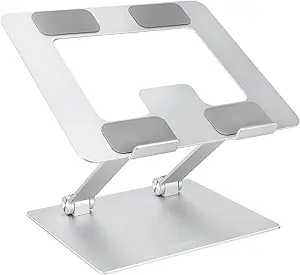
The first upgrade I made was a simple laptop stand.
Before using one, I spent hours looking down at my screen. By the end of the day, my shoulders felt tight and my neck constantly hurt.
A laptop stand raises your screen closer to eye level, helping maintain better posture. Even an affordable stand can make a noticeable difference.
Pros
- Improves viewing angle
- Reduces neck strain
- Better airflow for laptops
- Affordable upgrade
Cons
- Requires an external keyboard and mouse for best results
- Some models wobble slightly
Best For
Anyone working on a laptop for several hours a day.
2. An External Monitor

This was probably the biggest productivity upgrade I ever made.
I used to constantly switch between browser tabs, spreadsheets, documents, and video calls. It was frustrating and slowed everything down.
Adding a monitor instantly gave me more space to work.
Now I can keep my email open on one screen while working on projects on another.
Pros
- Increases productivity
- Easier multitasking
- Better visibility
- Reduces window switching
Cons
- Requires desk space
- Additional cost
Best For
Writers, marketers, designers, developers, virtual assistants, and anyone juggling multiple applications.
3. Ergonomic Keyboard

Many people underestimate how much typing they do every day.
I didn’t pay attention to keyboards until I started experiencing wrist discomfort after long writing sessions.
A good ergonomic keyboard keeps your hands in a more natural position and can make long workdays far more comfortable.
Popular options include:
- Logitech MX Keys
- Microsoft Ergonomic Keyboard
- Keychron mechanical keyboards
Pros
- Comfortable for long sessions
- Better typing experience
- Can improve productivity
Cons
- Takes time to adjust
- Quality models cost more
Best For
Remote workers who spend several hours typing daily.
4. Wireless Mouse
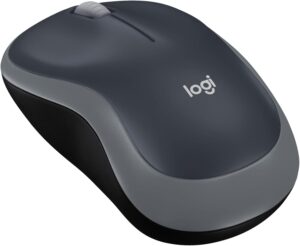
I used to use my laptop’s trackpad exclusively.
Then I bought a wireless mouse.
The difference was immediate.
Simple tasks became faster, navigation felt smoother, and my hand felt less fatigued throughout the day.
Popular choices include:
- Logitech MX Master Series
- Logitech M720
- Microsoft Bluetooth Mouse
Pros
- Faster navigation
- Better comfort
- Cleaner setup
Cons
- Batteries may need replacement
- Premium models can be expensive
Best For
Virtually every remote worker.
5. Monitor Light Bar or Desk Lamp

One mistake I made early on was ignoring lighting.
My workspace looked fine during the day, but evening work sessions often left my eyes feeling tired.
A monitor light bar or quality desk lamp improves visibility and reduces eye strain.
What I like most about monitor light bars is that they illuminate the desk without shining directly into your eyes.
Pros
- Better visibility
- Reduces eye fatigue
- Improves workspace aesthetics
Cons
- Additional expense
- Some models require monitor compatibility
Best For
Anyone working during evenings or in rooms with limited natural light.
6. Cable Management Accessories

This may sound boring, but it completely changes how your workspace feels.
I used to have charging cables, monitor cords, headphone wires, and power adapters tangled together underneath my desk.
Every time I needed one cable, I ended up moving five others.
A simple cable management kit solved that problem.
Useful accessories include:
- Cable clips
- Cable sleeves
- Under-desk cable trays
- Velcro cable ties
Pros
- Cleaner workspace
- Easier maintenance
- Professional appearance
Cons
- Takes effort to organize initially
Best For
Anyone tired of messy cables.
7. Large Desk Mat

A desk mat seems like a small upgrade, but it adds surprising value.
It protects your desk, provides a smoother mouse surface, and creates a cleaner visual appearance.
After adding one, my workspace felt more organized even though nothing else changed.
Pros
- Protects desk surface
- Improves mouse movement
- Makes workspace look cleaner
Cons
- Requires occasional cleaning
- Some materials attract dust
Best For
People who want a more polished desk setup.
8. Noise-Canceling Headphones
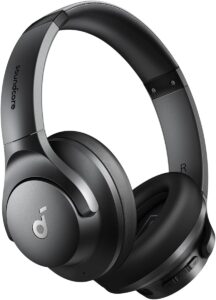
One of the biggest challenges of remote work is dealing with distractions.
Whether it’s traffic outside, family conversations, construction noise, or noisy neighbors, interruptions can quickly destroy focus.
Noise-canceling headphones have become one of my most-used work tools.
Popular options include:
- Sony WH-1000XM series
- Bose QuietComfort series
- Apple AirPods Pro
Pros
- Improved concentration
- Better call quality
- Less distraction
Cons
- Premium models are expensive
- Some users prefer open-ear awareness
Best For
Remote workers in noisy environments.
Step-by-Step: Building a Remote Work Desk Setup
If you’re starting from scratch, here’s the order I’d recommend:
Step 1: Fix Ergonomics First
Prioritize:
- Comfortable chair
- Laptop stand
- External keyboard
- Mouse
Comfort affects productivity more than aesthetics.
Step 2: Add Screen Space
Invest in:
- External monitor
- Monitor arm if space is limited
This usually delivers the biggest productivity boost.
Step 3: Improve Lighting
Add:
- Desk lamp
- Monitor light bar
Your eyes will thank you.
Step 4: Organize Cables
Use:
- Cable clips
- Velcro ties
- Cable trays
A tidy desk creates less visual stress.
Step 5: Upgrade Comfort
Consider:
- Desk mat
- Wrist rest
- Footrest
- Headphones
These finishing touches improve daily comfort.
Common Mistakes to Avoid
Buying Everything at Once
I made this mistake.
It’s tempting to buy every trending desk accessory you see online, but many end up unused.
Start with essentials and upgrade gradually.
Ignoring Ergonomics
Fancy RGB lights won’t help if your neck hurts every day.
Comfort should always come before appearance.
Choosing Style Over Function
Some desk accessories look amazing in photos but offer little practical value.
Focus on tools that solve actual problems.
Not Managing Cables
Even expensive setups look messy when cables are scattered everywhere.
Good cable management makes a huge difference.
Working in Poor Lighting
Eye strain builds up over time.
Investing in proper lighting is worth it.
Frequently Asked Questions
What is the most important desk setup essential for remote workers?
If I had to choose one, it would be proper ergonomics. A laptop stand, comfortable chair, and external keyboard can dramatically improve comfort during long workdays.
Do I really need an external monitor?
Not necessarily, but most people notice a significant productivity increase when they have more screen space.
How much should I spend on a home office setup?
You can build a functional setup on a modest budget. Start with essentials and upgrade gradually based on your needs.
Are standing desks worth it?
For many remote workers, yes. They encourage movement throughout the day and can help reduce prolonged sitting.
How can I make a small desk feel bigger?
Use monitor arms, wireless accessories, vertical storage, and cable management solutions to maximize available space.
Final Recommendation
After experimenting with countless desk accessories over the years, I’ve found that the biggest improvements come from a handful of practical essentials rather than flashy gadgets.
If you’re prioritizing upgrades, start with a laptop stand, external monitor, ergonomic keyboard, wireless mouse, and proper lighting. These items have the greatest impact on comfort and productivity.
A well-designed remote work setup doesn’t need to be expensive or Instagram-worthy. It simply needs to help you work comfortably, stay organized, and focus on the tasks that matter most.
That’s ultimately what makes a workspace successful.