I used to think a mouse was just a mouse.
As long as the cursor moved smoothly and the buttons worked, I was happy. That changed after a few weeks of spending long hours at my computer. After editing articles, researching keywords, working in WordPress, and jumping between browser tabs, I started noticing something I had previously ignored: my hand and wrist felt tired before the rest of me did.
The strange part was that I wasn’t doing anything physically demanding. I was simply using a mouse for several hours a day.
I eventually realized that the problem wasn’t necessarily the number of hours I spent at the computer. My mouse, grip, desk setup, and the way I positioned my arm were all contributing to the discomfort.
That’s when I started paying much more attention to ergonomic mice.
If you regularly work, study, edit videos, browse the web, play games, or handle spreadsheets for long periods, the right mouse can make your workstation noticeably more comfortable. But buying the most expensive ergonomic mouse isn’t automatically the answer.
Here’s what I learned.
What Makes a Mouse Ergonomic?
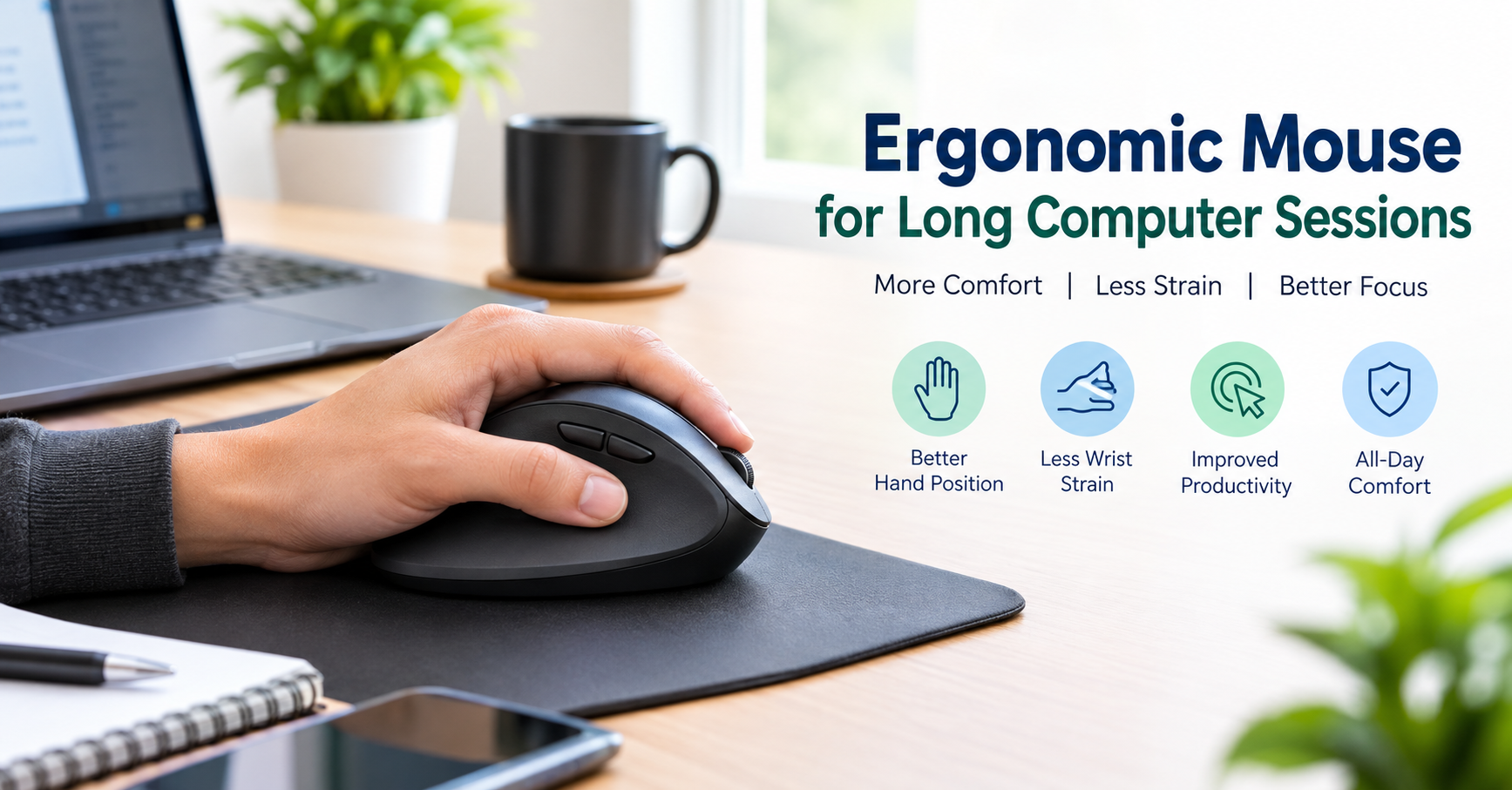
An ergonomic mouse is designed around the way your hand and wrist naturally rest and move.
Instead of forcing your hand into one particular position, a good ergonomic design tries to reduce unnecessary tension while you work.
Depending on the model, you might see features such as:
- A contoured shape that supports your palm
- A more natural thumb position
- Reduced pressure on the wrist
- Adjustable sensitivity
- Programmable buttons
- Vertical or semi-vertical designs
- Different sizes for different hand shapes
- Wireless connectivity
- Textured surfaces for better grip
The important thing is that “ergonomic” doesn’t automatically mean comfortable for everyone.
That’s one of the mistakes I made initially.
I assumed a mouse marketed as ergonomic would immediately feel better. Instead, some designs felt awkward because my hand wasn’t used to the shape.
Comfort depends heavily on your hand size, grip style, desk height, and how you actually use your mouse.
Why Long Sessions Change the Equation
Using a mouse for ten or fifteen minutes is very different from using one for six hours.
During a short session, you may not notice that your wrist is slightly bent or that you’re gripping the mouse harder than necessary.
After several hours, those small habits become much more noticeable.
For example, if your mouse is too small, your fingers may remain curled throughout the day. If it’s too large, you might stretch your hand to reach the buttons.
The same thing can happen if your desk is too high. Your shoulder may remain slightly raised while your forearm rests on the desk.
The mouse isn’t always the only problem.
Your entire workstation matters.
The Biggest Lesson I Learned: Don’t Blame the Mouse First
When my hand started feeling uncomfortable, my first instinct was to buy a different mouse.
That wasn’t the smartest approach.
Before changing the mouse, I changed how I was sitting and positioned my arm. I moved the mouse closer to my body and made sure my forearm had somewhere comfortable to rest.
That alone made a noticeable difference.
A mouse works best when it is part of a comfortable workstation rather than a standalone solution.
Try this simple setup:
- Sit with your shoulders relaxed.
- Keep your elbow reasonably close to your body.
- Let your forearm rest comfortably.
- Keep your wrist in a fairly neutral position.
- Position the mouse close enough that you don’t have to reach.
- Use a sensitivity level that doesn’t require huge arm movements.
- Avoid squeezing the mouse unnecessarily.
You don’t need a perfect laboratory setup. Small adjustments can make a surprisingly big difference.
Vertical vs. Traditional Ergonomic Mice
One of the biggest choices you’ll encounter is whether to stick with a traditional ergonomic mouse or try a vertical mouse.
A traditional ergonomic mouse generally looks familiar. It may have a curved body, thumb support, and a shape designed to fit your palm.
A vertical mouse is different. Your hand sits in a more upright position rather than lying relatively flat.
Neither design is automatically better.
A vertical mouse can feel strange during the first few days because the movement is different. Your brain has to adjust to controlling the cursor from a new hand position.
That’s why I wouldn’t judge one after five minutes in a store or a quick test.
Give your hand some time to adapt.
At the same time, don’t force yourself to use a mouse that consistently feels uncomfortable. “Getting used to it” shouldn’t mean ignoring persistent pain.
Pay Attention to Mouse Size
This is an underrated part of choosing an ergonomic mouse.
Manufacturers sometimes provide small, medium, or large sizing information, and it’s worth checking.
If your hand is relatively small, a huge mouse can make reaching buttons uncomfortable. If you have large hands, a compact mouse may leave your fingers hanging awkwardly over the front.
A simple way to think about it is this:
Your hand should feel supported without being stretched or squeezed.
When you’re holding the mouse naturally, your fingers should reach the buttons without excessive curling or stretching.
Don’t Ignore Your Grip Style
People generally use mice differently.
Some people use a palm grip, where much of the hand rests on the mouse.
Others use a claw grip, with the palm partly raised and fingers more curved.
Then there’s the fingertip grip, where only the fingertips make significant contact.
Your preferred grip should influence the mouse you choose.
For example, a mouse designed around a large palm-supporting shape may feel excellent to one person and cumbersome to someone who naturally uses a fingertip grip.
This is another reason specifications alone don’t tell the whole story.
Sensitivity Matters More Than I Expected
Mouse sensitivity can have a surprisingly large effect on long sessions.
If the sensitivity is too low, you may constantly move your arm across the desk to reach different areas of the screen.
If it’s extremely high, tiny hand movements can produce large cursor movements, which may make precise work frustrating.
For general computer work, I prefer finding a middle ground where I can comfortably move the pointer around the screen without repeatedly lifting and repositioning the mouse.
On Windows, you can adjust pointer settings through the system settings. Many mice also allow you to adjust DPI using manufacturer software.
For example, Logitech mice can be configured through Logi Options+ on supported models, while other brands provide their own configuration software.
The exact setting isn’t important.
What matters is finding a sensitivity that lets you work without exaggerated movements or constantly tensing your hand.
Programmable Buttons Can Reduce Repetitive Work
Extra buttons aren’t just for gamers.
If you regularly work in browsers, editing software, spreadsheets, or productivity apps, programmable buttons can save small amounts of movement throughout the day.
For example, you might assign buttons to:
- Browser back
- Browser forward
- Copy
- Paste
- Switching applications
- Zoom
- Frequently used shortcuts
Those individual actions may only save a second or two.
But when you repeat them hundreds of times, the convenience adds up.
The key is not to buy a mouse with twelve buttons simply because it has twelve buttons.
Buy the features you’ll actually use.
Wireless or Wired?
For a desk used primarily for work, I generally prefer wireless because it removes another cable from the workspace.
Modern wireless mice can provide reliable connections and good battery life, depending on the model.
However, wired mice still have advantages.
You don’t need to worry about charging or replacing batteries, and there is no wireless receiver to manage.
For office work, either can be perfectly reasonable.
If you already have a cable-free workstation, a wireless ergonomic mouse can fit nicely into that setup.
What About Trackballs?
Trackball mice are another interesting option for people who spend long periods at a computer.
Instead of moving the entire mouse around your desk, you control the pointer using a ball built into the device.
This can be useful if your desk has limited space.
A trackball can also reduce the amount of physical desk movement required to position the cursor.
However, there’s a learning curve.
The first time I used a trackball-style device, cursor control felt surprisingly unfamiliar. Tasks that were automatic with a traditional mouse suddenly required more concentration.
If you’re curious about trackballs, don’t judge the experience during the first few minutes.
My Simple Test for an Ergonomic Mouse
If you’re shopping for one, here’s the test I’d use.
Step 1: Hold It Normally
Don’t deliberately change your grip to make the mouse feel comfortable.
Hold it the way you naturally would.
Notice whether your fingers feel cramped, stretched, or relaxed.
Step 2: Move the Cursor Around
Open a browser or document and move the pointer around the screen.
Try both small and large movements.
Does your hand feel relaxed?
Step 3: Test the Buttons
Click the main buttons repeatedly.
They shouldn’t require excessive force.
Also check whether your thumb naturally reaches any additional buttons.
Step 4: Check Your Wrist
Look at your wrist rather than just your fingers.
Is your wrist being forced into an awkward angle?
Is your forearm positioned comfortably?
Step 5: Try Real Work
This is the most important test.
Use the mouse for actual work rather than simply moving the pointer around.
Edit a document. Browse several websites. Select text. Drag files. Work with spreadsheets.
A mouse that feels impressive for five minutes may feel completely different after two hours.
Common Mistakes to Avoid
Buying Based Only on Reviews
Reviews are useful, but someone’s perfect mouse might not fit your hand.
Use reviews to understand build quality, software, reliability, and common problems. Don’t assume another person’s comfort will automatically transfer to you.
Choosing the Most Expensive Model
Price doesn’t guarantee a better fit.
A $30–$50 mouse that fits your hand properly can be more useful than an expensive model that feels awkward.
Ignoring Desk Height
If your desk is too high or too low, even a well-designed mouse may not solve the underlying problem.
Look at your chair, desk, keyboard, monitor, and mouse as one system.
Using a Death Grip
You don’t need to squeeze the mouse.
Try relaxing your fingers and letting your hand rest naturally.
Making Huge Cursor Movements
If you’re constantly sweeping your entire arm across the desk, experiment with pointer sensitivity.
You may be able to accomplish the same movement with less physical travel.
Expecting Immediate Results
Especially with a vertical mouse, adaptation can take some time.
But there’s an important distinction between normal adjustment and persistent discomfort.
If something continues to hurt, don’t simply assume you need to “push through” it.
Who Should Consider an Ergonomic Mouse?
An ergonomic mouse is worth considering if you:
- Spend several hours a day at a computer
- Work from home
- Edit photos or videos
- Write or research extensively
- Use spreadsheets frequently
- Study on a computer
- Browse or manage websites
- Spend long periods doing repetitive computer tasks
- Want to improve your desk setup
You don’t have to wait until your hand becomes uncomfortable before thinking about ergonomics.
Sometimes the best upgrade is simply preventing a small annoyance from becoming a daily frustration.
A Practical Setup for Long Computer Sessions
If you’re building a comfortable workstation, don’t focus entirely on the mouse.
I’d start with the basics:
Mouse: Choose a size and shape that fits your hand.
Keyboard: Keep it close enough that you aren’t reaching forward.
Monitor: Position it so you’re not constantly looking downward.
Chair: Adjust it so your feet and body feel properly supported.
Desk: Make sure your working surface allows your arms to rest comfortably.
Breaks: Don’t spend an entire day in exactly the same position.
Even a fantastic ergonomic mouse won’t compensate for sitting motionless for hours.
The Bottom Line
Finding a comfortable mouse for long computer sessions isn’t really about finding a magical product.
It’s about finding the combination of shape, size, sensitivity, grip, and workstation position that works for your particular hand and working habits.
I learned that the hard way by initially focusing on the mouse while ignoring the rest of my setup.
If you’re shopping for one, start with fit rather than features. Hold it, test the buttons, check your wrist position, and ideally use it for real work before deciding.
And if you’re already experiencing persistent pain, numbness, weakness, or other concerning symptoms, don’t assume a new mouse is the solution. Adjust your setup and consider getting advice from an appropriate healthcare professional.
For everyone else, a well-fitting ergonomic mouse can be one of those small workstation upgrades that you don’t appreciate until you’ve spent a few weeks using it.
Then you wonder why you didn’t make the change sooner.