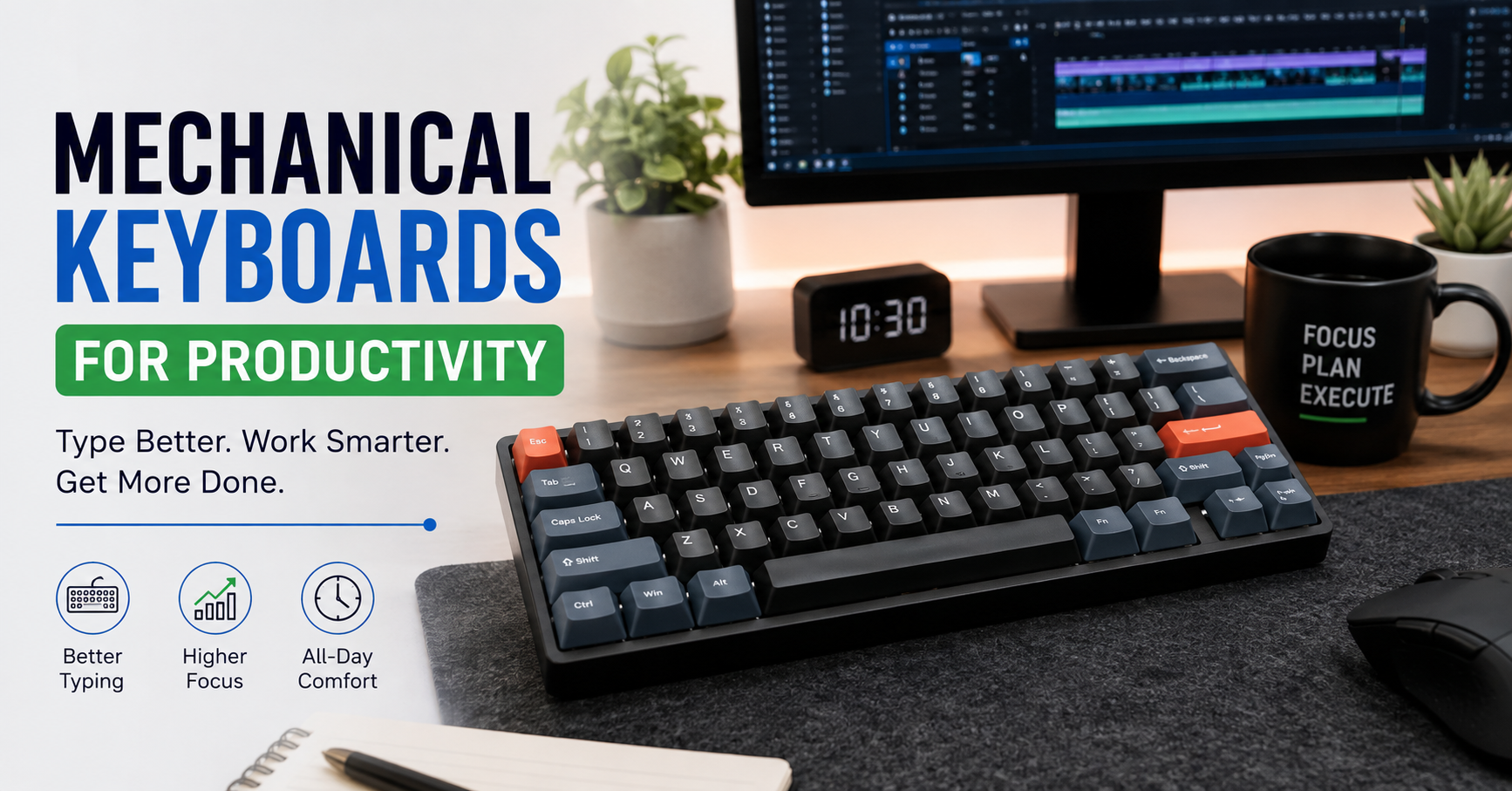
I didn’t buy my first mechanical keyboard because I thought it would make me more productive. Honestly, I bought it because I liked the sound.
After a few days of using it for writing, SEO work, browsing, and long sessions at my desk, though, I started noticing something unexpected: I was enjoying typing more, and I was making fewer annoying typing mistakes.
That doesn’t mean a mechanical keyboard magically makes you work faster. It doesn’t. But the right one can make a noticeable difference in how your desk feels and how comfortable you are during long typing sessions.
I’ve also learned the hard way that not every mechanical keyboard is a productivity upgrade. Some are loud, some have switches that don’t suit you, and some look great online but become uncomfortable after several hours.
So, if you’re thinking about getting one for work, writing, coding, studying, or general computer use, here’s what I would look for.
What Makes a Mechanical Keyboard Different?
A mechanical keyboard uses individual switches underneath the keys. These switches determine how each key feels and sounds when you press it.
That’s different from the inexpensive membrane keyboards that come bundled with many desktop computers.
The important thing isn’t simply that mechanical keyboards are “better.” It’s that they give you more choices.
You can choose:
- A soft, relatively quiet typing experience
- A tactile key that gives you feedback when it activates
- A more noticeable clicking sound
- Different key sizes and layouts
- Wired or wireless connectivity
- Programmable keys and shortcuts
- Compact layouts that leave more desk space for your mouse
That flexibility is one of the biggest reasons mechanical keyboards have become popular with writers, programmers, students, gamers, and people who spend most of their day at a computer.
Why I Like Mechanical Keyboards for Productivity
The biggest difference I noticed wasn’t typing speed.
It was the feeling of typing.
With a keyboard that has switches I like, every keypress feels deliberate. There’s enough feedback that I don’t feel like I’m randomly pushing keys into a flat surface.
That becomes particularly noticeable when writing long articles or working with spreadsheets.
For example, when I’m writing, I’m constantly using:
- Backspace
- Enter
- Shift
- Ctrl
- Arrow keys
- Copy and paste shortcuts
- Numbers and punctuation
A keyboard that feels predictable makes those repeated actions less irritating.
1. Typing Can Feel More Comfortable
Comfort is one of the biggest reasons to consider a mechanical keyboard.
However, this is where I made an early mistake.
I assumed a mechanical keyboard with heavier switches would automatically feel more premium.
It didn’t.
After several hours, heavier switches made my fingers feel like they were doing more work than necessary. I eventually preferred lighter switches with a moderate amount of tactile feedback.
Your experience can be completely different.
That’s why switch choice matters more than the mechanical keyboard label itself.
2. Better Feedback Can Help With Accuracy
Some mechanical switches have a tactile bump that tells you when the key has activated.
That physical feedback can make typing feel more controlled.
It isn’t a guarantee that you’ll type faster or make fewer mistakes. Your typing habits still matter much more.
But if you already type regularly, you may find tactile feedback easier to work with than a completely soft or mushy keypress.
3. They Can Make Long Typing Sessions More Enjoyable
This sounds like a small thing, but it matters.
If you spend several hours writing an article, programming, answering emails, or working in Google Docs, you’re pressing keys thousands of times.
When the keyboard feels good, the work becomes less irritating.
That’s especially useful if your computer is your main workspace.
4. Mechanical Keyboards Offer More Customization
Another advantage is customization.
Depending on the keyboard, you may be able to change:
- Keycaps
- Switches
- Layout
- Lighting
- Macros
- Key assignments
- Connection mode
Some keyboards even support hot-swappable switches, meaning you can replace switches without soldering.
This is useful if you discover that you don’t like the switches that came with your keyboard.
Which Switch Type Is Better for Productivity?
There’s no universal “best” switch.
This was another lesson I learned after trying different keyboards.
The three broad categories you’ll encounter are linear, tactile, and clicky.
Linear Switches
Linear switches have a smooth keypress without a tactile bump.
They tend to feel consistent from the top of the keypress to the bottom.
They can be a good option if you like smooth, uninterrupted typing.
They’re also often popular with people who want a quieter or less noticeable typing experience, although actual noise depends on the entire keyboard design.
Tactile Switches
Tactile switches provide a noticeable bump during the keypress.
For productivity, these are worth considering if you want physical feedback while typing.
I personally find tactile switches particularly satisfying for writing because I can feel the key activation rather than relying entirely on the sound.
Clicky Switches
Clicky switches intentionally produce a distinct clicking sound.
They can be incredibly satisfying.
There’s just one problem: your coworkers or family members might not agree.
If you’re working in a shared office, library, bedroom, or next to someone watching television, a loud clicky keyboard can become annoying very quickly.
For a private workspace, though, the sound may be exactly what you want.
Don’t Ignore Keyboard Size
The size of a keyboard affects productivity more than I initially expected.
A full-size keyboard includes the traditional number pad.
That’s useful if your work involves entering lots of numbers.
For example, accountants, data-entry workers, and people working extensively with spreadsheets may appreciate having a dedicated number pad.
A tenkeyless keyboard removes the number pad.
This creates more space for your mouse and can make a desk feel less crowded.
Then there are compact layouts such as 75%, 65%, and 60%.
These remove various keys or combine functions to save space.
I wouldn’t automatically choose the smallest keyboard.
If you regularly use the function row, navigation keys, or arrow keys, removing them can actually slow you down.
A compact keyboard looks great until you realize you’re constantly searching for a key combination you used to press directly.
A Simple Productivity Setup
If you’re buying a mechanical keyboard specifically for work, I’d start with a setup like this:
Keyboard: Tenkeyless or 75% mechanical keyboard
Switches: Tactile or light linear
Connection: Wired for simplicity or wireless for a cleaner desk
Keycaps: Comfortable, readable keycaps
Software: Keyboard manufacturer’s configuration software
Desk: Keyboard positioned so your wrists aren’t unnecessarily bent
You don’t need an expensive custom keyboard.
A reasonably priced mechanical keyboard with switches you enjoy can be much more useful than a premium keyboard you don’t like typing on.
How to Choose Your First Mechanical Keyboard
Here’s the process I’d use if I were buying one again.
Step 1: Decide What You Actually Do
Don’t start with the keyboard’s appearance.
Start with your work.
Do you:
- Write articles?
- Code?
- Work with spreadsheets?
- Study?
- Edit videos?
- Browse the web?
- Game after work?
- Switch between several applications?
Your answer should influence the layout and features you choose.
Step 2: Decide How Much Noise You Can Tolerate
This is important.
If you work alone, sound may not matter much.
If you share a room or office, consider tactile or linear switches designed for quieter operation.
Also remember that the switch isn’t the only source of noise. Keycaps, the keyboard case, desk surface, and the way you type all contribute to the final sound.
Step 3: Think About Your Layout
If you use the number pad every day, don’t sacrifice it just because a compact keyboard looks cleaner.
If you rarely use it, removing it can give your mouse more room.
For many general productivity users, 75% and tenkeyless keyboards are a good middle ground.
Step 4: Check Whether It Supports Hot-Swapping
If you’re experimenting with mechanical keyboards, hot-swappable switches can be extremely useful.
You can change switches later without buying another complete keyboard.
That gives you room to experiment as you figure out what you like.
Step 5: Don’t Buy Based on Sound Alone
This is probably my biggest warning.
Mechanical keyboard videos make keyboards sound fantastic.
But microphone recordings don’t necessarily represent what you’ll hear in your own room.
A keyboard that sounds amazing in a YouTube video may be much louder, sharper, or deeper in person.
I learned to pay more attention to switch specifications, typing feel, reviews, and the keyboard’s layout rather than buying because of a satisfying sound test.
Mechanical Keyboard Mistakes to Avoid
Buying the Most Expensive Keyboard
Price doesn’t automatically equal comfort.
A $200 keyboard isn’t necessarily twice as enjoyable to type on as a $100 keyboard.
Features, build quality, layout, and switches matter more than the price tag alone.
Choosing Switches Without Trying Them
If possible, try a switch tester or visit a store where you can physically test keyboards.
Five minutes of typing can tell you more about your preference than dozens of product descriptions.
Choosing a Keyboard That’s Too Loud
That satisfying click can become irritating after several hours.
And if someone else shares your workspace, they may notice the noise before you do.
Buying a Tiny Layout for the Wrong Reason
A 60% keyboard can look incredibly clean.
But if your work relies on dedicated function keys, navigation keys, or arrow keys, you’ll be using shortcuts constantly.
Small isn’t automatically better.
Ignoring Ergonomics
A mechanical keyboard can’t fix an uncomfortable workstation.
Your chair height, desk height, monitor position, keyboard angle, and wrist position all matter.
Keep the keyboard positioned so you’re not constantly reaching upward or bending your wrists into an awkward position.
Can a Mechanical Keyboard Actually Make You More Productive?
Yes—but indirectly.
The keyboard itself isn’t going to suddenly double your output.
Productivity comes from things like better workflows, fewer distractions, useful shortcuts, good software, and consistent habits.
A mechanical keyboard can simply remove a small source of friction.
If you enjoy typing, you may be more comfortable writing for longer periods.
If the layout gives you easier access to the keys you use frequently, you may work more naturally.
And if your keyboard is comfortable, you don’t spend your workday thinking about how uncomfortable it is.
Those small improvements can add up.
Mechanical Keyboards for Different Types of Work
Writers and Bloggers
I’d look for a comfortable tactile or smooth linear switch, depending on your preference.
A 75% or tenkeyless layout is usually plenty unless you frequently use a number pad.
Programmers
A compact keyboard can work particularly well if you frequently use keyboard shortcuts.
Programmable keys can also be useful for repetitive commands.
Just make sure the layout doesn’t interfere with keys you use regularly.
Spreadsheet Users
A full-size keyboard may be the better choice.
The dedicated number pad can be much more convenient for entering numerical data.
Students
I’d prioritize affordability, comfort, and reasonable noise levels.
There’s no need to spend heavily on enthusiast features if you’re primarily taking notes and working in Google Docs or Microsoft Word.
Remote Workers
Wireless connectivity can help keep a small desk tidy.
But I’d prioritize reliable connectivity over fancy lighting or unnecessary features.
A keyboard that reconnects instantly is far more useful than one with spectacular RGB effects that you rarely notice.
A Few Productivity Features Worth Paying For
Not every extra feature is useful, but some can genuinely help.
Programmable keys: Useful for repetitive actions and shortcuts.
Multiple-device connectivity: Handy if you regularly switch between a laptop, tablet, and desktop.
Hot-swappable switches: Excellent if you want to experiment with different switch types.
Dedicated media controls: Convenient if you frequently control music or video while working.
Wireless connectivity: Helpful if you value a clean desk.
USB-C: A practical standard that makes charging and connectivity easier.
RGB lighting, on the other hand, is mostly a personal preference. It can look great, but I wouldn’t make it a deciding factor for a productivity keyboard.
My Biggest Lesson
The biggest thing I’ve learned from using mechanical keyboards is that the “best” keyboard isn’t necessarily the one with the most features.
It’s the one you don’t have to think about while working.
Your fingers should naturally find the keys. The switches should feel comfortable. The layout should match your work. The noise should fit your environment.
And after a few hours, you shouldn’t be desperately looking for your old keyboard.
That’s the real test.
If you’re currently using a cheap keyboard and spend several hours every day writing, coding, studying, or working at your computer, trying a mechanical keyboard could be a worthwhile upgrade.
Just don’t buy one because everyone online says you need one.
Try different switches if you can, choose the layout around your actual work, and give yourself some time to adjust.
The right mechanical keyboard won’t do your work for you—but it can make the hours you spend doing it a lot more pleasant.