I learned the value of a portable SSD the hard way.
A few years ago, I was working with a folder full of video clips that had been recorded for a project. Everything was sitting on a laptop, along with photos, editing projects, downloaded assets, and a growing collection of screen recordings.
Then the laptop started running out of storage.
The annoying part wasn’t just the warning about low disk space. Video editing became slower, moving files around took forever, and I had to keep deleting things just to make room for the next project.
That was when I started using portable SSDs more seriously.
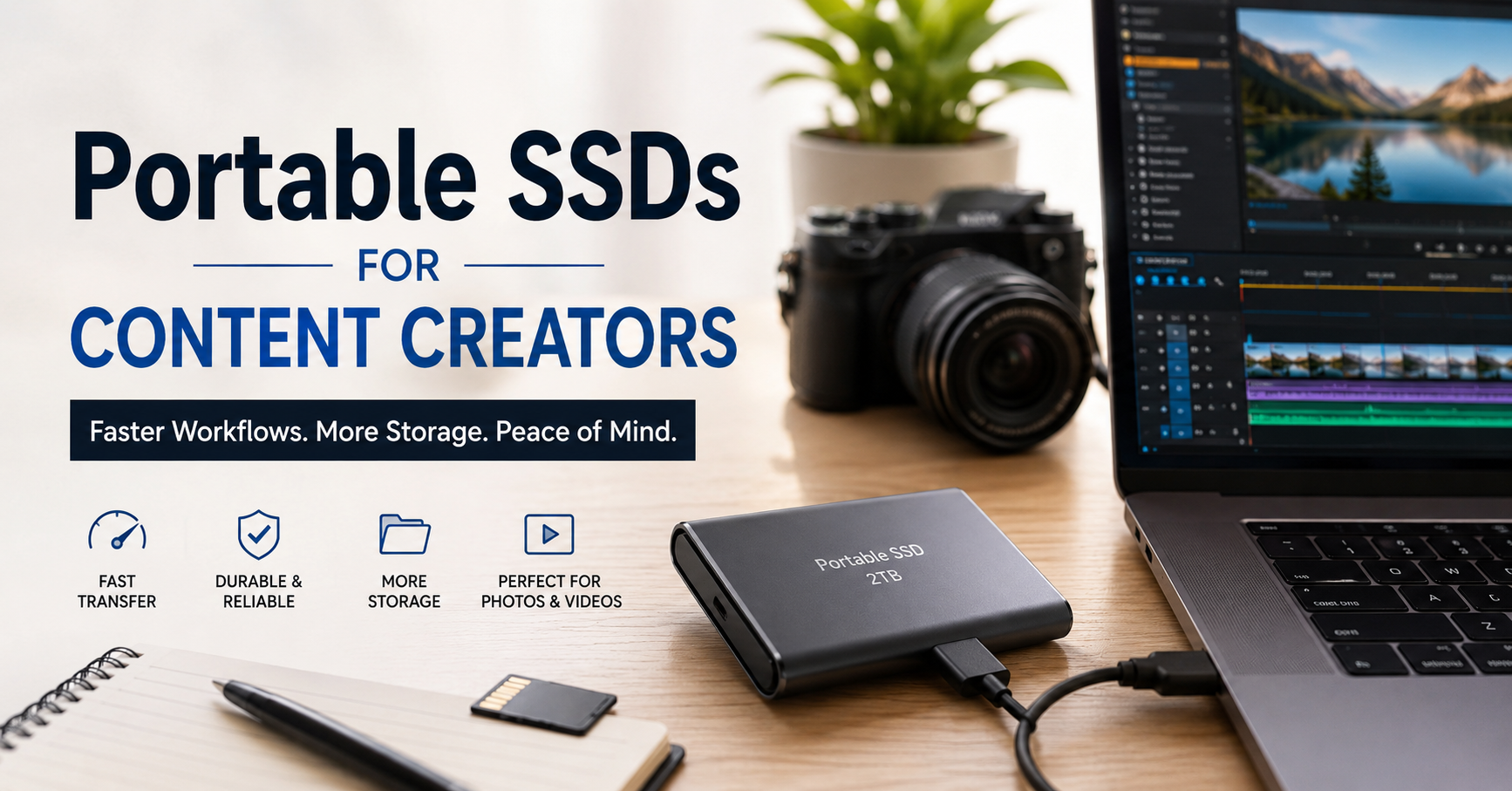
For content creators, a good portable SSD can become more than just an external drive. It can act as a working drive for video projects, a backup destination, a way to move large files between devices, or simply extra storage that you can carry in your pocket.
But there are a few things I wish I had understood before buying my first one.
Why Content Creators Need Portable SSDs
Content creation produces surprisingly large files.
A few high-resolution photos might not seem like much, but video footage is a different story. A single recording session can produce tens or hundreds of gigabytes, especially when you’re working with 4K footage, RAW photos, high-quality audio, or large project files.
A laptop’s internal storage can disappear quickly.
For example, you might have:
- Camera footage
- Smartphone videos
- Lightroom photo libraries
- Photoshop projects
- Premiere Pro or DaVinci Resolve projects
- Audio recordings
- Screen recordings
- Thumbnail designs
- Stock footage
- Fonts and graphics
- Exported videos
- Project backups
Keeping everything on your computer isn’t always practical.
A portable SSD gives you another place to store those files without carrying around a traditional desktop hard drive.
And unlike many older external hard drives, SSDs don’t rely on spinning disks. They’re generally much faster and more convenient for portable workflows.
What Makes an SSD Useful for Content Creation?
The biggest advantage I noticed was speed.
Copying a large video folder to an older external hard drive could feel painfully slow. With a decent SSD and a suitable USB connection, transferring large files can be dramatically quicker.
That matters when you’re working against a deadline.
Imagine finishing a video edit at night and needing to move the project to another computer. Waiting several minutes for a large folder isn’t the end of the world, but doing it repeatedly throughout the day gets frustrating.
An SSD also makes working with large files more comfortable.
You can store footage on the external drive, connect it to your computer, and work directly from it in some editing setups.
However, there’s an important catch: the SSD itself isn’t the only thing that determines speed.
Your computer’s USB port, cable, enclosure, file system, and the SSD controller can all affect real-world performance.
That’s one of the first lessons I learned.
Portable SSD vs. External HDD
If you’re deciding between a portable SSD and a traditional external hard drive, the choice depends on what you’re doing.
A hard disk drive can still make sense when you need a lot of storage for a relatively low price.
For example, you could use a large external HDD to archive old video projects that you rarely touch.
A portable SSD makes more sense when speed and portability matter.
Portable SSD advantages
- Faster file transfers
- Better suited to portable workflows
- No spinning mechanical disk
- Compact size
- Usually quieter
- Convenient for moving between computers
- Useful for active editing projects
External HDD advantages
- Often cheaper per terabyte
- Available in very large capacities
- Good for long-term storage and archives
- Useful when transfer speed isn’t the priority
For many creators, using both is actually the smarter approach.
You could keep current projects on an SSD and use a larger HDD for older projects and archives.
How Much Storage Do You Actually Need?
This is where I would avoid buying the biggest drive simply because it looks like the best deal.
Think about your workflow first.
500GB
A 500GB SSD can work for light users.
It’s suitable for:
- Documents
- Photos
- Short videos
- Social media projects
- Small design projects
But video creators can fill 500GB surprisingly quickly.
1TB
For many creators, 1TB is a comfortable starting point.
It gives you enough room for active projects without becoming excessively expensive or bulky.
If you’re creating YouTube videos, editing short-form content, taking photos, or working with moderate amounts of footage, 1TB can be a practical choice.
2TB
If you regularly work with 4K video, photography, or large creative projects, 2TB can make life easier.
You don’t have to constantly move files off the drive just to make room for your next project.
4TB and beyond
Large capacities make sense for professional workflows or creators who regularly handle huge amounts of footage.
But there’s another consideration: don’t put all your important files on one drive just because it has lots of storage.
More storage doesn’t automatically mean better backup protection.
My Biggest Mistake: Treating One SSD as a Backup
This is probably the most important lesson.
At one point, it was tempting to think:
“I’ve copied my project to the SSD, so it’s backed up.”
Not necessarily.
If the original file is deleted from your laptop and the only remaining copy is on your portable SSD, you haven’t created a reliable backup system. You’ve simply moved the file.
Drives can fail.
They can also be lost, damaged, accidentally formatted, or corrupted.
A better approach is to maintain multiple copies of important work.
For example:
Laptop → Portable SSD → Separate backup drive or cloud storage
You don’t necessarily need to back up every temporary file three times. But important client projects, finished videos, original photographs, and irreplaceable recordings deserve more protection.
Cloud services such as Google Drive, Dropbox, OneDrive, or dedicated backup software can also be part of the system.
Portable SSDs for Video Editing
This is one of the most useful applications.
Programs such as Adobe Premiere Pro, DaVinci Resolve, and Final Cut Pro can involve large media files and project libraries.
Instead of filling your computer’s internal drive with every piece of footage, you can organize your media on an external SSD.
A simple workflow might look like this:
Portable SSD
→ Client Projects
→ YouTube
→ Raw Footage
→ Audio
→ Graphics
→ Exports
→ Archive
I recommend keeping project folders organized from the beginning.
Don’t create a folder called “New Video Final 2 FINAL Really Final” and expect yourself to understand it six months later.
Use clear names and dates.
For example:
2026-08-YouTube-Camera-Review
Inside that folder:
- Footage
- Audio
- Project
- Graphics
- Exports
- Documents
It sounds basic, but good organization saves a lot of time.
Can You Edit Directly From a Portable SSD?
Yes, depending on the software, computer, SSD, connection, and type of media you’re working with.
This can be particularly useful when your laptop doesn’t have enough internal storage.
For example, you can keep large video files on the SSD while the editing application itself remains installed on the computer.
However, don’t assume that every SSD will provide the same experience.
If your computer has a slower USB connection, connecting an extremely fast SSD won’t magically give you its maximum advertised performance.
This is another mistake I made when I first started paying attention to SSD specifications.
Pay Attention to the USB Connection
When shopping for a portable SSD, don’t look only at the drive’s advertised read and write speeds.
Look at the complete setup.
You should check:
- SSD speed
- USB standard
- Computer port
- Cable
- File system
- Your actual workflow
For example, a high-performance SSD connected through a slower USB interface won’t operate at its maximum potential.
USB-C also deserves a little clarification.
USB-C describes the connector shape. It doesn’t automatically tell you how fast the connection is.
Two USB-C ports can have very different capabilities.
So before buying an SSD, check what your laptop, desktop, tablet, or phone actually supports.
Portable SSDs for Smartphone Creators
This is becoming increasingly useful for people who record content on smartphones.
Modern phones can capture large, high-resolution video files, and storage can disappear quickly.
Depending on the phone and its supported connection, a compatible external SSD can make transferring or recording certain types of content much easier.
For creators who shoot lots of video on a phone, this can be especially convenient.
You can record content, move the footage to an SSD, and then continue working without constantly fighting against limited internal storage.
Just make sure the phone supports the required connection, storage device, and recording workflow before buying specifically for this purpose.
SSD Brands Worth Considering
There are many portable SSDs on the market, and models change frequently.
Some well-known names in this category include Samsung, SanDisk, Crucial, Kingston, Western Digital, and Seagate.
For creators, I would pay attention to more than the brand name.
Look at:
- Sustained performance
- Capacity
- Warranty
- Compatibility
- Physical durability
- Cable quality
- Software support
- Reviews from people using the drive for similar workloads
A drive that performs well during a short benchmark isn’t necessarily perfect for transferring hundreds of gigabytes continuously.
Heat can also become noticeable during heavy workloads.
Don’t Ignore Heat
This surprised me.
A portable SSD can become warm during long file transfers or sustained editing workloads.
That’s not automatically a sign that something is wrong. High-speed storage can generate heat when it’s working hard.
But excessive heat can affect performance, particularly during long sustained transfers.
If you’re frequently moving huge video files, pay attention to the SSD’s thermal behavior and make sure it isn’t trapped somewhere with no airflow.
Don’t cover it with clothing, place it underneath a heat-producing device, or expect a tiny drive to remain cool during hours of heavy activity.
A Simple Portable SSD Workflow for Creators
Here’s a workflow that works well for many content creators.
Step 1: Create a project folder
Start with one folder for each project.
Use a recognizable name.
Step 2: Copy original footage
Keep your original camera or phone footage organized and avoid randomly scattering files across different folders.
Step 3: Edit from the appropriate storage
If your system supports it, keep active media on the SSD while editing.
Step 4: Save project files regularly
Don’t rely entirely on automatic recovery.
Save your work and keep important project files backed up.
Step 5: Export finished content
Create a dedicated exports folder so you don’t confuse final files with raw footage.
Step 6: Back up important projects
Once a project matters, create another copy somewhere else.
Step 7: Archive completed work
When the project is finished, move it into your long-term archive system rather than leaving every old project on your active SSD.
Common Portable SSD Mistakes to Avoid
1. Buying based only on advertised speed
A huge speed number looks impressive, but your computer and connection need to support it.
2. Using the cheapest cable
A poor or incompatible cable can become the weak point in your setup.
Use a cable appropriate for the connection and performance you need.
3. Filling the SSD completely
It’s generally better to leave some free space rather than treating the drive like a warehouse with absolutely no room left.
4. Keeping only one copy
An SSD isn’t a replacement for a backup strategy.
5. Removing it while files are being written
Don’t casually unplug an SSD during transfers.
Safely eject it when your operating system provides that option.
6. Ignoring physical protection
Portable drives travel around in backpacks, camera bags, and laptop sleeves.
A small SSD can survive plenty of everyday use, but that doesn’t mean it’s indestructible.
A protective pouch or case is a simple investment.
7. Forgetting about encryption
If you’re carrying client files, personal documents, or other sensitive material, consider using encryption supported by your operating system or storage software.
If the drive is lost, encryption can provide an important layer of protection.
How to Choose the Right Portable SSD
If I were buying one specifically for content creation, I’d use this checklist:
For casual creators:
- 1TB capacity
- USB-C compatibility
- Good everyday transfer performance
- Compact design
- Reliable warranty
For video creators:
- 1TB or 2TB
- Faster USB connection
- Good sustained performance
- Strong thermal management
- Quality cable
- Reliable brand
For professional workflows:
- 2TB or more
- High sustained performance
- Excellent compatibility
- Strong warranty
- Multiple backup locations
- Possibly more than one working drive
Don’t automatically buy the most expensive model.
Buy the drive that matches your computer and your workflow.
What I’d Keep on a Portable SSD
If you’re a YouTuber, photographer, designer, or freelancer, you might organize the drive like this:
CONTENT SSD
│
├── YouTube
│   ├── 2026
│   └── Thumbnails
│
├── Client Projects
│   ├── Client A
│   └── Client B
│
├── Photography
│   ├── RAW
│   └── Edited
│
├── Audio
│
├── Graphics
│
└── Exports
The exact structure doesn’t matter as much as consistency.
When you need an old file six months later, you’ll appreciate the few minutes you spent organizing it.
Is a Portable SSD Worth It for Content Creators?
For most creators who regularly work with large files, I’d say yes.
The biggest benefit isn’t simply that an SSD is faster than an older hard drive.
It’s the convenience.
You can carry your active projects between a desktop and laptop. You can free up internal storage. You can organize large media libraries separately from your operating system. You can create a practical workflow that doesn’t depend on having every file stored on one computer.
But there’s one thing I’d keep in mind:
A portable SSD should be part of your storage strategy, not your entire storage strategy.
Use it for active projects and convenient storage, but keep another copy of important work somewhere else.
That one habit can save you from a very unpleasant day.
Final Thoughts
The first time you start using a portable SSD, it can feel like you’ve suddenly given your computer a huge amount of breathing room.
For content creators, that extra space can make a real difference.
You can keep large video libraries separate, move projects between devices, transfer footage faster, and avoid constantly deleting files just because your laptop is full.
The trick is choosing a drive that matches your actual equipment and then using it properly.
Don’t get distracted by the biggest speed number on the box. Check the connection, capacity, compatibility, sustained performance, and reliability. And most importantly, don’t confuse an external SSD with a backup.
Your footage, photos, projects, and client work are often worth far more than the drive they’re stored on.
Treat the storage accordingly.