The first time I tried turning a laptop into a proper workstation, I made a mistake that probably sounds familiar.
My desk looked fine until I actually sat down to work.
I had one cable for charging, another adapter for the monitor, a USB hub for my keyboard and mouse, and yet another cable for an external drive. Every time I wanted to leave the desk, unplugging everything felt like dismantling a small computer lab.
Then there was the frustrating part: sometimes the monitor would not wake up, my laptop would charge slowly, or one of the USB devices would randomly disconnect.
That experience is what makes a USB-C docking station useful.
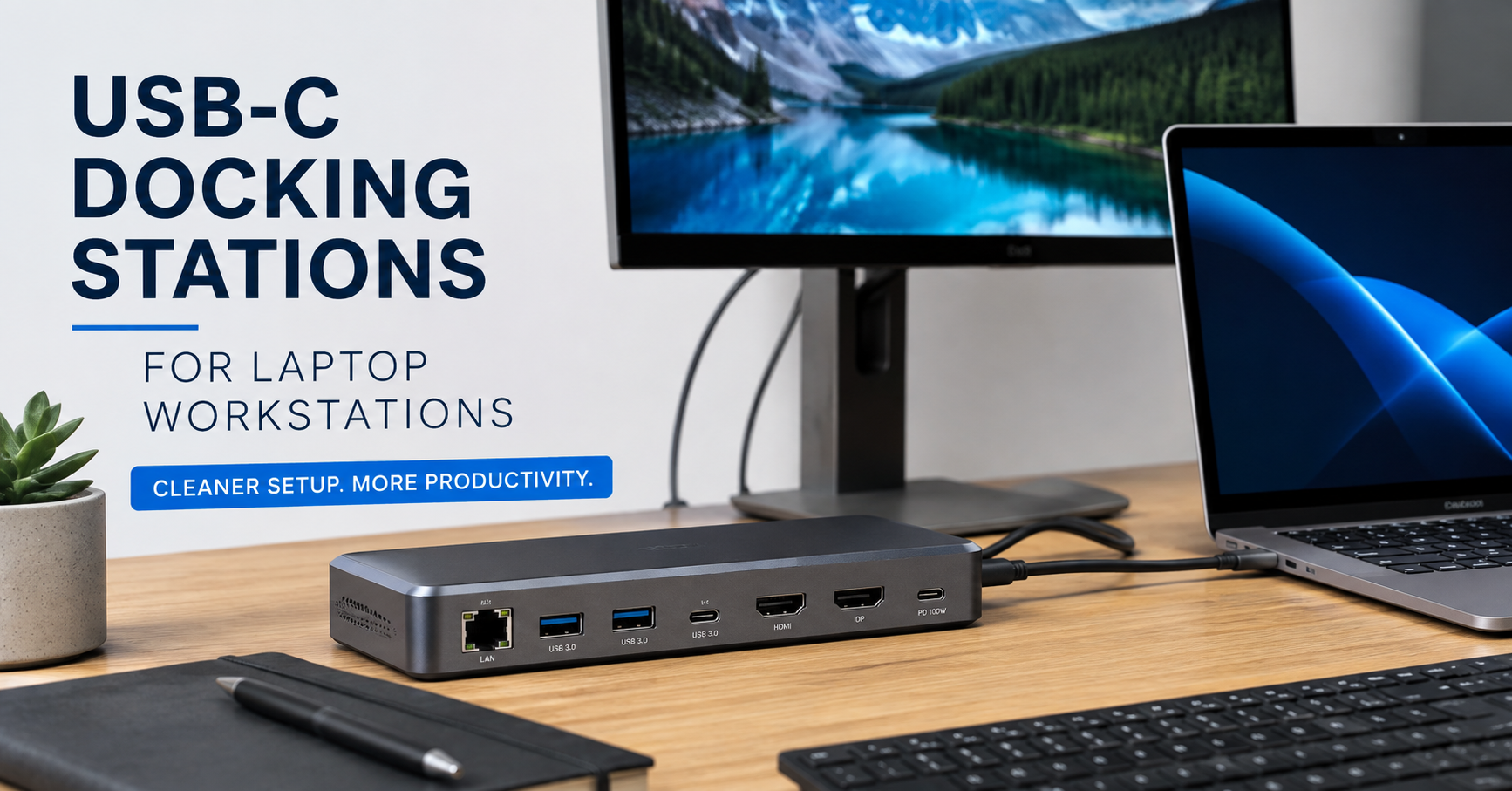
A good dock can turn a laptop from a portable computer into the center of a complete workstation. Instead of connecting five or six separate cables every morning, you can often connect one USB-C cable and have access to your monitor, keyboard, mouse, storage devices, Ethernet, and power.
But there is an important lesson I learned: not every USB-C docking station works the way people expect.
Two docks can look almost identical, have similar ports, and still offer completely different performance. Before buying one, it helps to understand what your laptop actually supports and what you want your workstation to do.
What a USB-C Docking Station Actually Changes
Imagine sitting down at your desk with your laptop in your bag.
Your monitor is already connected. Your keyboard and mouse are waiting. Your speakers, external SSD, webcam, and Ethernet cable are all connected to one dock.
Instead of plugging everything into your laptop individually, you connect a single cable.
That is the main appeal of a docking station.
A typical USB-C dock can provide connections for:
- External monitors
- USB keyboards and mice
- External SSDs or hard drives
- Ethernet
- SD or microSD cards
- Headphones or speakers
- Webcams
- Charging
The exact combination depends on the dock, but the goal is usually the same: make your desk setup feel more permanent without giving up the portability of your laptop.
For someone who moves between a desk, another room, a university, or an office, this can make a noticeable difference.
Instead of rebuilding your workspace every time, you simply connect one main cable.
The First Mistake: Assuming Every USB-C Port Does Everything
This is probably the most important thing to understand before buying a docking station.
A USB-C connector describes the shape of the port, but it does not automatically tell you everything the port can do.
For example, a laptop may have a USB-C port that supports charging and data but does not support video output.
Another laptop may support:
- USB-C charging
- High-speed data
- Display output
- Thunderbolt
They may look exactly the same from the outside.
I have seen people buy a dock with HDMI and multiple display ports, connect it to their laptop, and then wonder why the monitor does not work. The problem is sometimes not the dock at all. The laptop’s USB-C port may not support video output.
Before choosing a dock, check your laptop manufacturer’s specifications.
Look for terms such as:
- USB-C with DisplayPort
- DisplayPort Alt Mode
- Thunderbolt 3
- Thunderbolt 4
- USB4
You do not need to become an expert in connection standards. You just need to confirm that your laptop supports the features you plan to use.
If your goal is simply connecting a keyboard, mouse, and flash drive, your requirements are much simpler than someone who wants to run two high-resolution external monitors.
My Ideal Use Case for a Docking Station
The most useful setup, in my experience, is not necessarily the one with the largest number of ports.
It is the one that removes the annoying parts of connecting everything.
For example, a practical laptop workstation might include:
- A laptop on a stand
- One or two external monitors
- An external keyboard
- A wireless mouse receiver
- An external SSD
- Ethernet
- A webcam
- Laptop charging
Without a dock, that setup can quickly use every available port on the laptop.
With the right dock, most of those accessories can remain permanently connected to the desk.
When you sit down, you connect one cable.
When you leave, you disconnect one cable.
That sounds like a small improvement, but after doing it every day, it becomes surprisingly convenient.
Choosing the Right Dock for Your Workstation
Before looking at brands or comparing prices, I would start with one simple question:
What do I actually need to connect?
Make a quick list.
For example:
| Device or Accessory | Connection Needed |
|---|---|
| Main monitor | HDMI or DisplayPort |
| Second monitor | HDMI or DisplayPort |
| Keyboard | USB-A or Bluetooth |
| Mouse | USB-A or Bluetooth |
| External SSD | USB-C or USB-A |
| Internet | Ethernet |
| Laptop charging | USB-C Power Delivery |
| Camera card | SD or microSD |
This small step can prevent an unnecessary purchase.
It is easy to see a docking station with 12 or 15 ports and assume more is always better. But if you only need one monitor, Ethernet, charging, and a few USB ports, a smaller dock may be more practical.
Step 1: Check Your Laptop’s USB-C Capabilities
Start with your laptop model.
You can usually find the exact model number:
- On the bottom of the laptop
- In Windows System Information
- In macOS system settings
- On the original packaging or invoice
Then check the manufacturer’s technical specifications.
Pay particular attention to:
- Video output support
- Charging support
- Thunderbolt or USB4 support
- Maximum number of external displays
This last point matters more than many people realize.
A dock might physically have ports for multiple monitors, but your laptop may still limit how many displays it can support.
Step 2: Decide How Many Monitors You Really Need
A single external monitor can already make a major difference.
For writing, browsing, spreadsheets, video editing, programming, or research, having more screen space means less constant switching between windows.
A two-screen setup can be even more useful, but it also introduces more compatibility questions.
Before buying a dock for dual monitors, check:
- Whether your laptop supports two external displays.
- The maximum resolution and refresh rate supported.
- Whether the dock requires specific software or drivers.
- Which monitor ports you plan to use.
One unexpected problem people run into is assuming that two HDMI ports automatically mean two monitors will work independently.
That is not always the case.
The laptop, operating system, dock technology, and display connections can all affect the final result.
If you are unsure, start by checking your laptop’s official display specifications rather than relying only on the dock’s product listing.
Step 3: Pay Attention to Power Delivery
Charging is another area where the numbers matter.
A dock may support USB-C Power Delivery, but the amount of power delivered to your laptop can vary.
For a lightweight laptop used for browsing, writing, and general office work, lower charging power may be enough.
For a more powerful laptop used for tasks such as video editing, large spreadsheets, design work, or other demanding applications, you may need more power.
A mistake I would avoid is assuming that a dock will always charge your laptop at the same speed as its original charger.
Sometimes the dock may provide less power than the laptop’s standard charger. The laptop may still charge, but slowly, especially while you are using demanding software.
Before buying, compare:
- Your laptop’s recommended charger wattage
- The dock’s maximum charging output
- The power adapter included with the dock
That last detail is important.
Some docking stations support a certain power level but do not include the power adapter needed to reach it.
Step 4: Count USB Ports Before You Buy
It sounds obvious, but it is worth checking what type of USB ports you actually use.
Many modern accessories use USB-A.
That includes things like:
- Keyboard receivers
- Mouse receivers
- Webcams
- Printers
- Older external drives
Other accessories may use USB-C.
A dock with only USB-C ports might look modern, but it can create a new problem if most of your accessories still use USB-A.
I prefer a balanced selection when building a workstation: enough USB-A ports for common accessories and at least one useful high-speed USB-C connection for newer devices.
Also think about where the ports are located.
If you regularly plug in an SD card or USB drive, a front-facing or side-facing port can be much more convenient than reaching behind the dock every time.
Ethernet Can Be More Useful Than Expected
Wi-Fi is convenient, but a wired Ethernet connection can still be valuable for a fixed workstation.
This is especially useful if you:
- Upload large files
- Transfer data regularly
- Join frequent video calls
- Work with cloud storage
- Want a more stable desk connection
A dock with an Ethernet port allows you to keep the network cable connected to the workstation.
When you connect the laptop to the dock, you can immediately use the wired connection without plugging a separate Ethernet adapter into the laptop.
For people working with large website backups, video files, cloud drives, or shared office storage, this can be a small but useful improvement.
A Simple Way to Set Up Your Docking Station
Once you have the right dock, setup is usually straightforward.
1. Place the Dock Where It Will Stay
Choose a spot where cables can remain organized.
For example, you can place it:
- Behind the monitor
- Under a monitor riser
- Beside the laptop stand
- In a cable-management tray
The goal is to avoid turning the dock into another visible pile of cables.
2. Connect Permanent Accessories First
Connect the devices that normally stay on your desk:
- Monitor
- Keyboard
- Mouse
- Ethernet
- Speakers
- Webcam
- External storage
Try to route the cables before connecting the laptop.
This makes troubleshooting easier because you know the desk setup is already complete.
3. Connect the Dock to Power
If the dock uses an external power adapter, connect it according to the manufacturer’s instructions.
This is usually better than relying on the laptop connection alone for a workstation filled with multiple accessories.
4. Connect the Laptop
Finally, connect the main USB-C or Thunderbolt cable to your laptop.
If everything is compatible, your laptop should begin recognizing the connected devices.
The first time, I would test everything one by one.
Check:
- Is the laptop charging?
- Is the monitor displaying correctly?
- Are both monitors working, if applicable?
- Does the keyboard work?
- Does the mouse work?
- Is Ethernet connected?
- Is the external drive detected?
Testing everything immediately can save time later.
Real-Life Problems You Might Run Into
A docking station can simplify a workstation, but it is not always completely plug-and-play.
The Monitor Does Not Turn On
Start with the basics.
Check that:
- The monitor is powered on.
- The correct input is selected.
- The cable is properly connected.
- Your laptop supports video output through that port.
- The operating system detects the display.
On Windows, you can check display settings to see whether the monitor is detected.
On a Mac, check the display settings and available monitors.
Sometimes the solution is surprisingly simple. I have seen display problems caused by the monitor being set to the wrong HDMI or DisplayPort input.
The Laptop Charges Slowly
Check the dock’s power output.
If your laptop normally uses a higher-wattage charger than the dock provides, charging may be slow during heavy use.
This does not necessarily mean the dock is defective.
It may simply mean the dock is designed for lower-power laptops or general office workloads.
USB Devices Keep Disconnecting
This can happen when too many devices are drawing power or when there is a connection issue.
Try disconnecting unnecessary devices temporarily.
Also check:
- The dock’s power supply
- The main USB-C cable
- Software or firmware updates
- Whether a specific device is causing the problem
I would also avoid using a very long chain of adapters.
For example, connecting an adapter to another adapter and then into the dock can create unnecessary points of failure.
Common Mistakes to Avoid
Buying Based Only on the Number of Ports
More ports do not automatically mean a better dock.
Compatibility, charging power, display support, and connection speed matter just as much.
Ignoring Your Laptop’s Specifications
This is the biggest mistake.
Always check what your laptop supports before choosing a dock.
Forgetting About the Power Adapter
Some docks require you to provide your own USB-C charger.
Make sure you know whether the necessary power adapter is included.
Buying a Dock for a Future Setup You May Never Build
It is tempting to buy the most expensive dock with every possible feature.
But if you only use one monitor and two USB devices, you may be paying for capabilities you will never use.
Start with your actual needs.
Using the Wrong Cable
Not every USB-C cable supports the same features.
A cable designed mainly for charging may not provide the display or data performance required by your dock.
If you experience problems, testing with the cable supplied by the manufacturer is a good first step.
Who Can Benefit Most From a USB-C Dock?
I think docking stations make the most sense for people who regularly move their laptops but still want a proper desk setup.
That includes:
Remote Workers
You can use the laptop as a portable computer while still having a monitor, keyboard, mouse, and wired internet at your desk.
Students
A laptop can travel to classes or a library, then connect to a larger screen and comfortable keyboard at home.
Content Creators
Creators often connect storage devices, monitors, cameras, card readers, and other accessories. A dock can reduce the number of adapters required.
Programmers and Designers
Extra screen space and permanent desktop accessories can make long work sessions more comfortable.
Anyone With Limited Laptop Ports
Some thin laptops have only a small number of ports. A docking station can expand the available connections and make those limitations less frustrating.
Is a USB-C Docking Station Worth It?
For a laptop that spends most of its time on a desk, I would say it can be one of the most practical upgrades you can make.
Not because it magically makes the laptop faster.
It does not.
What it can do is make the entire workspace easier to use.
You spend less time connecting cables, fewer ports are constantly being plugged and unplugged, and your desk can feel much more organized.
The key is choosing the right dock instead of simply choosing the one with the biggest list of features.
Check your laptop’s capabilities first. Decide how many monitors and accessories you actually need. Make sure the charging output is suitable for your laptop, and pay attention to the types of ports you use every day.
Once those details are handled, a good USB-C docking station can turn the simple act of sitting down to work into something much easier: open the laptop, connect one cable, and get started.
That convenience is what makes a well-planned docking setup worthwhile.