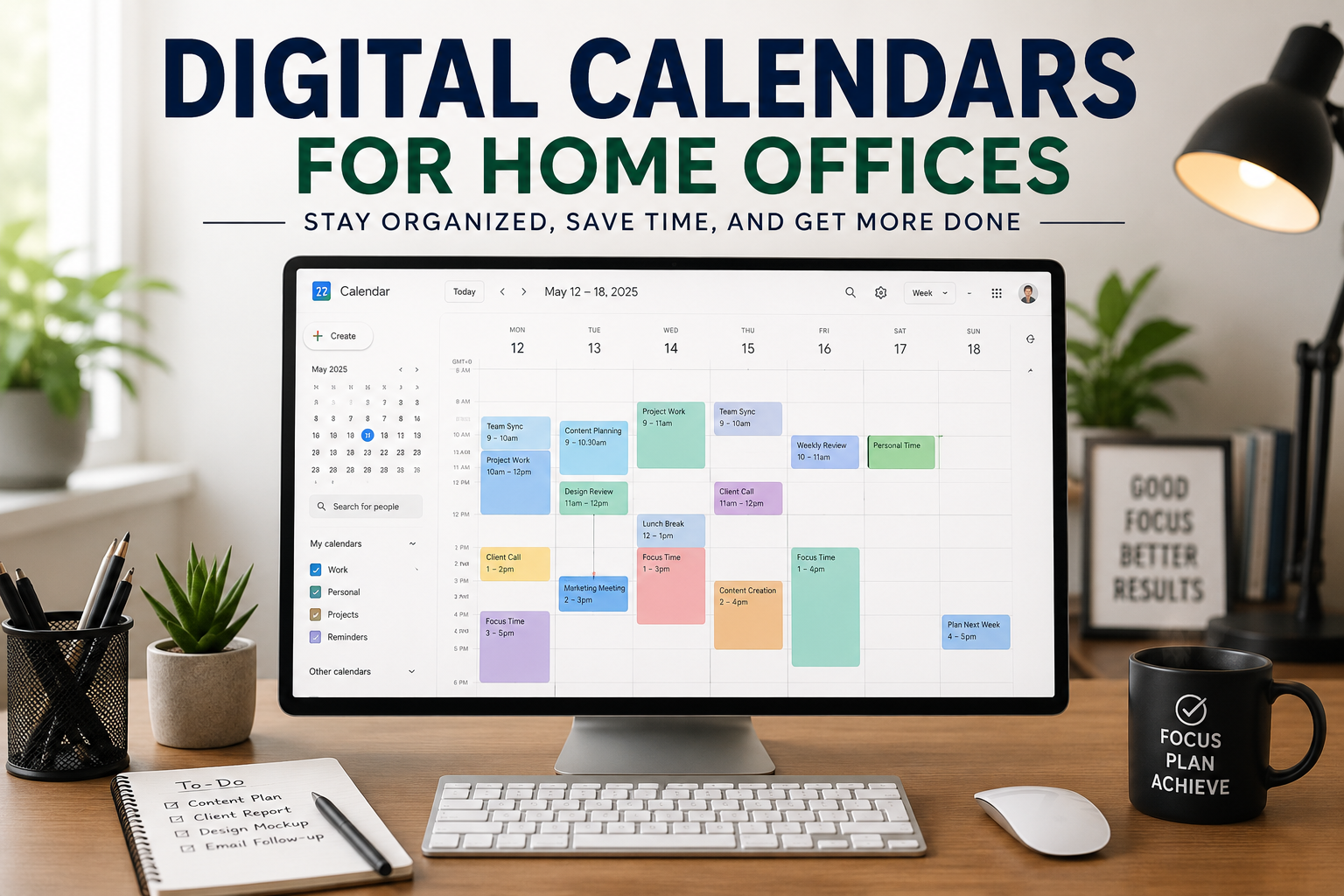
A few years ago, my desk looked organized, but my schedule definitely wasn’t. Sticky notes were scattered around my monitor, reminders were scribbled in a notebook, and I still managed to miss meetings and deadlines. I even forgot a doctor’s appointment that had been sitting on a paper calendar for weeks.
The funny part? I spent more time trying to remember what I needed to do than actually getting the work done.
That’s when I decided to move everything into a digital calendar. At first, I only used it for meetings, but over time it became the center of my entire workday. Tasks, content planning, personal appointments, focus sessions, and even lunch breaks all found a place there.
If you work from home, a digital calendar isn’t just another productivity app. It’s one of the easiest ways to reduce stress, stay on top of your schedule, and create better work-life balance.
Here’s what I’ve learned after relying on one every day.
Why a Digital Calendar Makes Such a Big Difference
Working from home sounds flexible until everything starts blending together.
Without a clear schedule, it’s easy to:
- Forget appointments
- Miss deadlines
- Double-book meetings
- Work longer than planned
- Constantly switch between tasks
A digital calendar gives every task a home.
Instead of trying to remember everything, your calendar remembers it for you.
That mental relief is surprisingly valuable.
What Is a Digital Calendar?
A digital calendar is simply an electronic scheduling tool that lets you organize:
- Meetings
- Appointments
- Work sessions
- Personal events
- Reminders
- Recurring tasks
Unlike paper planners, changes happen instantly across all your devices.
If you move a meeting while working on your computer, you’ll see the update on your phone seconds later.
Popular Digital Calendar Options
You don’t need expensive software to get started. Several excellent options are free.
Google Calendar
This is the one I use most often.
What makes it useful:
- Free
- Syncs across devices
- Easy color coding
- Works well with Gmail
- Sends reminders automatically
- Simple sharing with family or coworkers
It’s especially useful if you already use Google Workspace.
Microsoft Outlook Calendar
Perfect for people who work with Microsoft Office.
It integrates nicely with:
- Outlook email
- Microsoft Teams
- Office 365
- OneDrive
If your employer already uses Microsoft products, this usually feels like the most natural choice.
Apple Calendar
Mac, iPhone, and iPad users often prefer Apple Calendar because everything syncs automatically.
It isn’t packed with advanced features, but it’s clean, simple, and reliable.
Notion Calendar
If you already organize projects inside Notion, their calendar can keep tasks and schedules connected.
It’s especially useful for freelancers, writers, and project managers.
Fantastical
Fantastical is a premium calendar app known for its polished interface.
One feature I appreciate is natural language scheduling.
Instead of clicking through multiple menus, you can type:
“Meeting with Sarah tomorrow at 2 PM”
and the event is created automatically.
Setting Up Your Home Office Calendar
One mistake I made early on was treating my calendar like a meeting list.
It became much more useful once I scheduled my actual work.
Here’s the system that finally worked.
Step 1: Add Fixed Commitments
Start with events that already have a set time.
Examples:
- Team meetings
- Client calls
- School pickups
- Doctor appointments
- Weekly reviews
These create the foundation of your schedule.
Step 2: Block Time for Deep Work
This changed everything for me.
Instead of hoping I’d “find time” to work on important projects, I reserved it.
For example:
- 9:00–11:00 Writing
- 2:00–3:30 Research
- Friday morning planning
Those blocks became appointments with myself.
Step 3: Schedule Breaks
It sounds strange until you try it.
Without planned breaks, I often worked four or five hours straight before realizing I hadn’t even stood up.
Now my calendar reminds me to:
- Stretch
- Drink water
- Eat lunch
- Walk outside for ten minutes
The work actually gets better afterward.
Step 4: Use Color Coding
A colorful calendar isn’t just prettier.
It lets you understand your day at a glance.
For example:
- Blue — Meetings
- Green — Focus work
- Orange — Personal tasks
- Purple — Content creation
- Red — Deadlines
After using this system for a while, I could immediately spot when my week had too many meetings.
Helpful Features Worth Using
Many people only use the basic scheduling feature and miss the tools that save the most time.
Multiple Reminders
For important appointments, I use two reminders.
One arrives an hour before.
The second comes ten minutes before.
I’ve missed far fewer meetings since doing this.
Recurring Events
Anything that happens regularly should repeat automatically.
Examples include:
- Weekly reports
- Team meetings
- Monthly invoices
- Bill payments
- Content publishing
You only create it once.
Shared Calendars
If you work with family members or coworkers, shared calendars reduce confusion.
Everyone can see:
- Available times
- Vacation days
- Project deadlines
- Important appointments
It cuts down on endless scheduling messages.
Calendar Integrations
Many tools connect directly with your calendar.
Examples include:
- Zoom
- Microsoft Teams
- Google Meet
- Calendly
- Trello
- Asana
- Todoist
Instead of copying information between apps, events appear automatically.
A Simple Daily Workflow That Works
Here’s roughly how I organize my workday.
Morning
- Review today’s calendar
- Adjust priorities if needed
- Check reminders
- Start first focus block
Midday
- Meetings
- Emails
- Lunch
- Short walk
Afternoon
- Deep work
- Content creation
- Administrative tasks
End of Day
- Review completed work
- Move unfinished tasks
- Plan tomorrow
This routine only takes a few minutes but makes each day feel much more organized.
Real-Life Example
Imagine you’re running a small online business from home.
Without a calendar, your day might look like this:
- Forget supplier call
- Miss social media posting time
- Delay customer emails
- Skip lunch
- Finish work late at night
Now picture the same day with a digital calendar.
8:30 AM — Check emails
9:00 AM — Product updates
10:30 AM — Supplier meeting
12:00 PM — Lunch
1:00 PM — Customer support
3:00 PM — Social media content
4:00 PM — Inventory review
Everything has its place.
Instead of wondering what to do next, you simply follow the schedule.
Common Mistakes to Avoid
I made nearly every one of these.
Scheduling Every Minute
A packed calendar looks productive.
It usually isn’t.
Leave space between tasks because unexpected interruptions happen.
Ignoring Notifications
Reminders only help if you pay attention to them.
Choose notification times that actually fit your routine.
Mixing Personal and Work Without Labels
At one point, my calendar became confusing because everything looked identical.
Color coding fixed that immediately.
Never Reviewing Your Calendar
Planning is only half the job.
Spend five minutes each morning checking what’s ahead.
That habit prevents most surprises.
Forgetting Buffer Time
Meetings often run longer than expected.
Travel isn’t an issue in a home office, but switching mentally between tasks still takes time.
Adding a 10- or 15-minute gap between major activities makes the day feel much less rushed.
Tips for Staying Consistent
A digital calendar only works if you actually use it.
These habits helped me stick with it:
- Open it before checking email.
- Add new appointments immediately.
- Review tomorrow before ending work.
- Keep recurring events updated.
- Remove old reminders you no longer need.
- Sync all devices so your schedule is always current.
After a few weeks, checking the calendar becomes automatic.
Is a Digital Calendar Enough?
For some people, yes.
For others, pairing it with a task manager works even better.
Here’s how I separate them:
Calendar
- Time-specific events
- Meetings
- Appointments
- Focus sessions
Task Manager
- To-do lists
- Project checklists
- Ideas
- Long-term goals
This keeps the calendar from becoming cluttered while still helping me stay organized.
Choosing the Right Calendar
The best option depends on how you work.
Choose Google Calendar if you already use Gmail and want something free and reliable.
Choose Outlook Calendar if your work revolves around Microsoft Office.
Choose Apple Calendar if you’re fully invested in Apple’s ecosystem.
Choose Notion Calendar if your projects already live inside Notion.
Choose Fantastical if you want advanced scheduling features and don’t mind paying for a premium experience.
The good news is that most of these services sync across phones, tablets, and computers, so you’re not tied to one device.
Final Thoughts
The biggest benefit of switching to a digital calendar wasn’t that I suddenly became busier. It was the opposite. I stopped carrying my entire schedule around in my head.
Knowing that reminders, appointments, and work blocks were already organized let me focus on the task in front of me instead of worrying about what I might be forgetting.
If you’re setting up a home office—or simply trying to bring more structure to your workday—start with one calendar, keep it updated, and use it consistently for a couple of weeks. You don’t need a complicated system. A simple, well-maintained schedule can make your days feel calmer, your work more focused, and your home office far easier to manage.