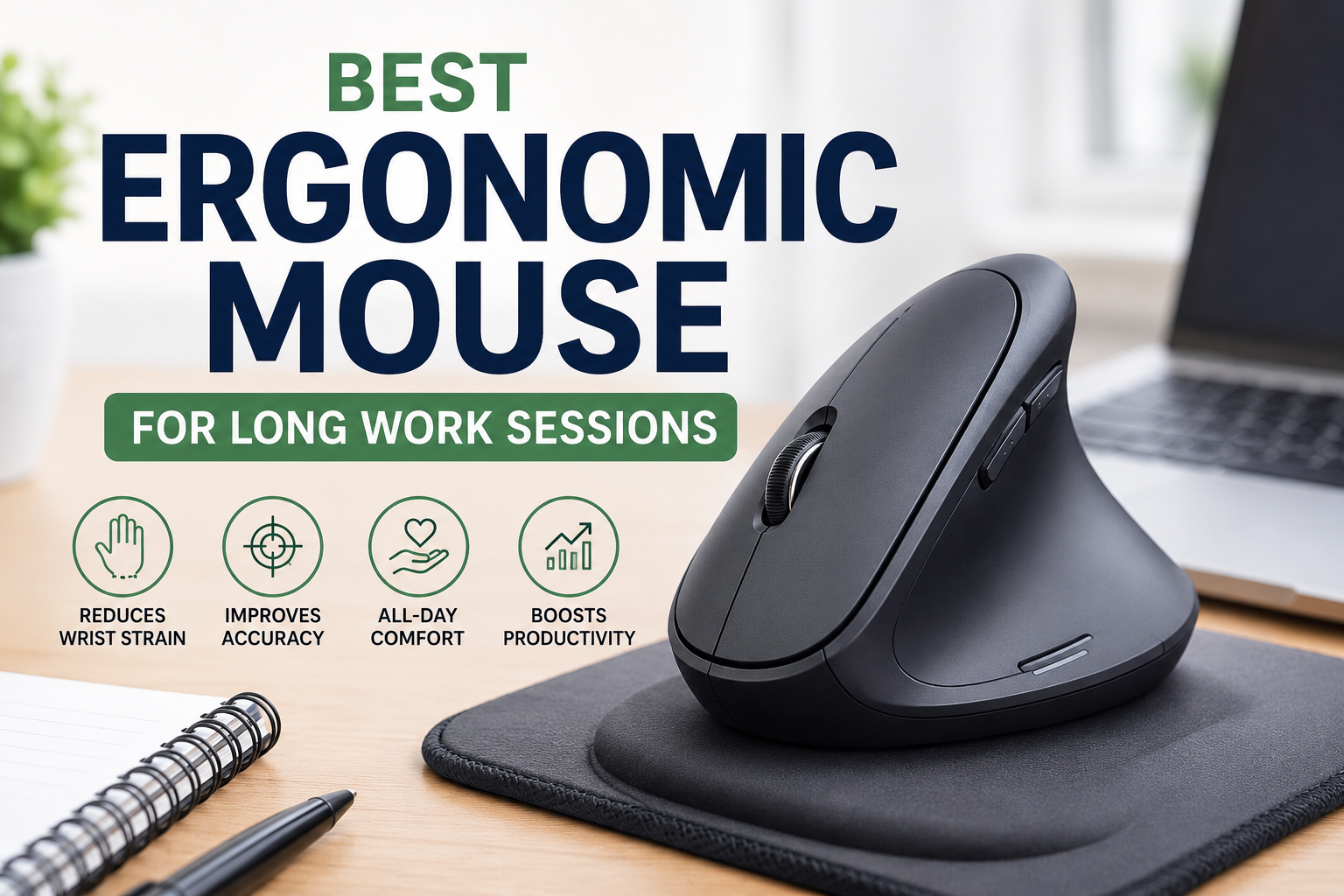
A few years ago, I thought wrist pain was just part of spending long hours at a computer. I’d finish work, stand up, and my right wrist would feel stiff. Sometimes my fingers felt slightly numb, and I blamed everything except the mouse sitting under my hand for eight to ten hours every day.
I even bought a fancy keyboard, changed my chair, and adjusted my monitor. Things improved a little, but the discomfort never completely disappeared. It wasn’t until I switched to a proper ergonomic mouse that I realized how much difference one small piece of equipment could make.
The change wasn’t instant. My hand needed a few days to adjust, and I was slower at first. But after about a week, I noticed something surprising: I could work through long editing sessions, write articles, and browse spreadsheets without constantly stretching my wrist.
If your hand feels tired before your brain does, it’s probably time to rethink your mouse.
Why Your Mouse Matters More Than You Think
Most people pay attention to laptops, monitors, and keyboards. The mouse usually becomes an afterthought.
The problem is that your mouse is one of the few devices your body touches almost constantly throughout the workday. Every click, every drag, every small movement adds up.
A poorly designed mouse can force your wrist into an awkward angle for hours. That doesn’t necessarily cause problems overnight, but after weeks or months, many people begin noticing discomfort in their wrist, fingers, forearm, or even shoulder.
An ergonomic mouse is designed to encourage a more natural hand position, reducing unnecessary strain during extended use.
Signs You Might Need an Ergonomic Mouse
You don’t have to wait until your wrist hurts badly.
Some early warning signs include:
- Your wrist feels sore after work.
- You frequently shake your hand to “wake it up.”
- Your fingers become stiff during long sessions.
- Your forearm feels tight.
- You notice discomfort while clicking or dragging.
- Your shoulder becomes tense after several hours.
I ignored these signs for months because they disappeared after a night’s sleep. Eventually, they started coming back earlier every day.
That’s when I realized the problem wasn’t my workload—it was how I was working.
What Makes an Ergonomic Mouse Different?
Not every expensive mouse is ergonomic.
Here are the features that actually matter.
Comfortable Shape
An ergonomic mouse supports your palm instead of forcing you to grip tightly.
Your hand should feel relaxed rather than squeezed.
Natural Wrist Position
Many ergonomic mice tilt your hand slightly instead of forcing it completely flat.
That small angle can reduce pressure on your wrist over long periods.
Proper Size
One mistake I made was buying a mouse that was too small.
Because my palm couldn’t rest comfortably, I constantly gripped it with my fingertips.
Choosing the correct size made a bigger difference than switching brands.
Adjustable DPI
DPI controls how fast your cursor moves.
A higher DPI lets you move across large monitors without making huge arm movements.
Finding the right setting reduces unnecessary motion throughout the day.
Programmable Buttons
Extra buttons aren’t just for gamers.
I use them for:
- Copy
- Paste
- Browser Back
- Browser Forward
- Screenshot shortcuts
These small conveniences save thousands of repetitive movements over time.
Best Ergonomic Mouse Options
Here are some of the most reliable choices for different types of users.
Logitech MX Master 3S
This is one of the easiest recommendations for office work.
It fits comfortably in medium and large hands, tracks well on almost any surface, and includes customizable buttons through Logitech Options+ software.
It’s especially useful if you:
- Edit documents
- Work with spreadsheets
- Browse dozens of browser tabs
- Use multiple monitors
The thumb wheel becomes surprisingly useful once you get used to horizontal scrolling.
Logitech Lift
The Logitech Lift uses a vertical design that keeps your hand in a more natural handshake position.
It feels unusual for the first few days.
After adjusting, many users find it significantly reduces wrist pressure.
It’s a great option for:
- Office workers
- Writers
- Remote employees
- Students
- Anyone experiencing wrist discomfort
Logitech MX Vertical
If you spend nearly your entire day on the computer, the MX Vertical is another strong choice.
Its steeper angle reduces wrist twisting more than traditional mice.
It’s larger than the Lift, making it ideal for medium to large hands.
Anker Wireless Vertical Mouse
Not everyone wants to spend premium prices.
The Anker Wireless Vertical Mouse offers a similar ergonomic concept at a much lower cost.
The materials aren’t as premium, but it’s an affordable introduction to vertical mice.
Razer Pro Click
Some people want both comfort and high performance.
The Razer Pro Click combines ergonomic design with excellent tracking, making it suitable for professionals who also enjoy gaming after work.
Choosing the Right Mouse for Your Work
The “best” mouse depends on what you actually do every day.
Writers and Bloggers
Comfort matters more than extra buttons.
Look for:
- Comfortable palm support
- Quiet clicks
- Reliable wireless connection
Designers
Precision becomes more important.
Choose:
- High-quality sensor
- Adjustable DPI
- Smooth tracking
- Multiple programmable buttons
Spreadsheet Users
If Excel or Google Sheets is open all day, thumb buttons and horizontal scrolling become incredibly useful.
They may seem unnecessary at first but quickly become difficult to live without.
Video Editors
Timeline editing involves thousands of tiny movements.
A comfortable mouse with customizable shortcuts can noticeably improve workflow.
How to Set Up Your Mouse Properly
Buying the mouse is only half the solution.
Here’s what helped me.
Step 1: Adjust Your Desk Height
Your elbow should rest around a 90-degree angle.
If your shoulder is raised while using the mouse, you’ll still develop fatigue.
Step 2: Keep the Mouse Close
I used to place my mouse too far away.
That forced my shoulder outward all day.
Moving it closer immediately felt more comfortable.
Step 3: Lower Your Grip Pressure
Many people squeeze the mouse without realizing it.
Try holding it just firmly enough to control it.
Relax your fingers whenever possible.
Step 4: Adjust Cursor Speed
If your cursor moves too slowly, you’ll make larger arm movements.
Experiment with your operating system’s pointer speed until movement feels effortless.
Step 5: Take Short Breaks
Even the best ergonomic mouse isn’t magic.
Every hour or so, stand up, stretch your fingers, rotate your wrists, and walk for a minute.
Those small breaks help more than people expect.
Accessories That Make a Difference
Your mouse works best as part of a comfortable workspace.
Consider pairing it with:
- An adjustable office chair
- A monitor at eye level
- A quality desk mat
- A keyboard with proper wrist support
- A footrest if your feet don’t comfortably reach the floor
Improving your entire workstation creates a bigger difference than replacing one device alone.
Common Mistakes People Make
Buying Based Only on Reviews
A mouse that feels perfect for someone else may not fit your hand.
Hand size matters more than star ratings.
Ignoring the Adjustment Period
When I switched to a vertical mouse, I almost returned it after two days.
I’m glad I didn’t.
It took about a week before it felt completely natural.
Resting Your Wrist on the Desk
Instead of pressing your wrist into the desk edge, let your arm move naturally.
Too much pressure on one spot can create its own discomfort.
Never Cleaning the Mouse
Dust and skin oils eventually affect smooth movement.
A quick wipe every week keeps buttons responsive and tracking consistent.
Using the Same Position All Day
Even with an ergonomic mouse, staying in one position for hours isn’t ideal.
Changing posture throughout the day helps reduce fatigue.
Wired vs Wireless
I’ve used both.
For most office work, wireless wins.
Modern wireless mice have excellent battery life and eliminate cable drag, making movement feel smoother.
A wired mouse still makes sense if you:
- Prefer never charging batteries
- Need absolute consistency
- Have a fixed workstation
For everyday productivity, either option works well.
Is an Ergonomic Mouse Worth It?
If you spend one or two hours on a computer each day, you may not notice a dramatic difference.
If your job involves six, eight, or even ten hours of computer work, it’s a different story.
Think about how often you use your mouse.
Hundreds of clicks become thousands.
Thousands become millions over the years.
A comfortable mouse isn’t just another gadget—it’s something your hand interacts with almost constantly.
After switching, I stopped thinking about my wrist because it simply wasn’t bothering me anymore. That’s probably the biggest compliment any ergonomic product can receive. You don’t notice it because it quietly lets you focus on your work instead of your discomfort.
If you’re building a workspace for long-term productivity, an ergonomic mouse is one of the smartest upgrades you can make. Pair it with good posture, regular movement breaks, and a properly adjusted desk, and you’ll likely notice the difference long before the end of your workday.