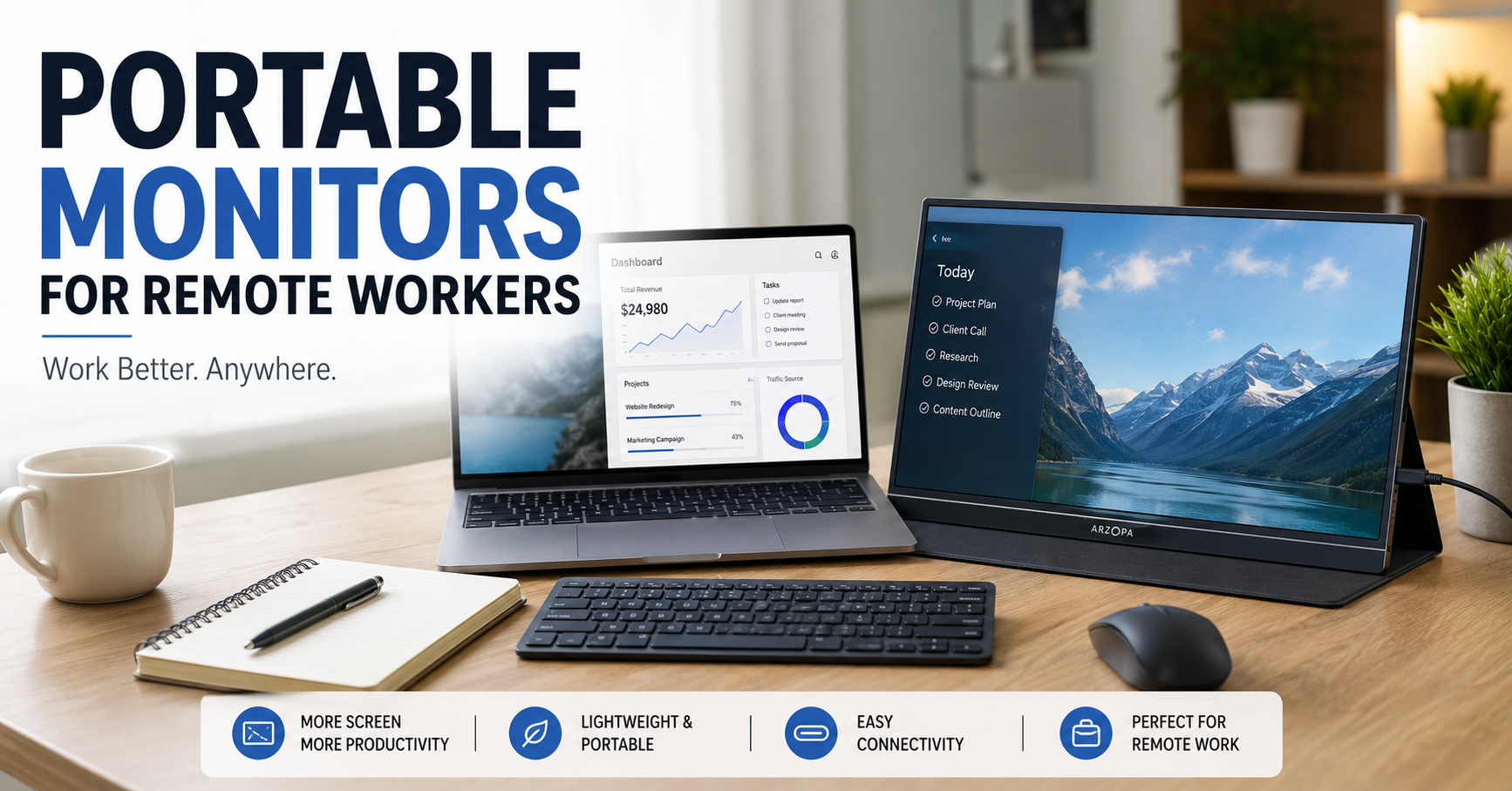
I used to think a second monitor was something you only needed if you had a big desk and a permanent office setup. Then I started working from different places more often.
One day I was answering emails from a laptop at the dining table. Another day I was working from a small desk in a bedroom. I even tried working from a coffee shop where my laptop screen felt painfully cramped after a couple of hours.
The problem wasn’t really the laptop. It was the lack of screen space.
I wanted to keep a browser window open while working on a document, check data without constantly switching tabs, and occasionally have a video call running while taking notes. A portable monitor turned out to be one of the simplest ways to make that possible without carrying a full desktop monitor around.
If you work remotely, travel frequently, study from different locations, or simply have a small workspace, a portable monitor can be surprisingly useful. But there are a few things I wish I’d understood before choosing one.
Why a Portable Monitor Makes Remote Work Easier
The biggest advantage is simple: you get more screen space without needing a permanent workstation.
With only a laptop, you might spend your day switching between:
- Google Chrome
- Microsoft Word or Google Docs
- Slack or Microsoft Teams
- Spreadsheets
- Research pages
- Project management tools
That constant switching doesn’t sound like a big deal, but it becomes irritating when you’re doing it dozens of times an hour.
With a second screen, I prefer putting my main task on the laptop and keeping supporting information on the portable monitor.
For example, while writing an article, I can keep the document on one screen and research material on the other. When working with spreadsheets, I can keep the spreadsheet open while having email or a browser window beside it.
The monitor doesn’t magically make you more productive. It simply reduces some of the unnecessary window juggling.
What Exactly Is a Portable Monitor?
A portable monitor is essentially a thin, lightweight external display designed to be moved around easily.
Most models are somewhere around 13 to 17 inches, although larger options exist. Many are designed to connect to laptops through USB-C, while some also support HDMI or other connections.
Unlike a traditional desktop monitor, a portable model can fit inside a laptop bag.
Some models also include:
- Built-in speakers
- Adjustable stands
- Touchscreens
- Multiple USB-C ports
- HDMI input
- Built-in batteries
- Protective covers
You don’t necessarily need all of these features.
In fact, one of the mistakes I made was initially paying attention to features that sounded impressive rather than the ones I would actually use.
The Most Important Thing: Check Your Laptop’s Ports
This is probably the first thing I’d check before buying anything.
A portable monitor may advertise USB-C connectivity, but not every USB-C port can send video.
That’s an easy detail to overlook.
Some USB-C ports support video output through DisplayPort Alt Mode, while others are mainly intended for charging or data transfer.
Before buying a monitor, check your laptop’s specifications and confirm how its USB-C ports work.
If your laptop doesn’t support video over USB-C, you may need a monitor with HDMI connectivity or an appropriate adapter.
A simple setup usually looks like this:
- Place the portable monitor beside your laptop.
- Connect the USB-C cable or appropriate video cable.
- Connect power if the monitor requires a separate power source.
- Wait for your operating system to detect the display.
- Open your display settings.
- Choose whether you want to duplicate or extend the screen.
- Arrange the displays so the cursor moves naturally between them.
For most remote work, Extend these displays is the option you want.
That gives you two separate workspaces instead of showing exactly the same thing on both screens.
Portable Monitor Size: 14, 15.6, or 16 Inches?
Screen size is a personal choice, but portability matters.
A 13- or 14-inch monitor can be convenient if you travel frequently because it takes up less space in your bag.
A 15.6-inch model gives you more working room while still being relatively easy to carry.
Larger monitors can be useful if you spend most of your time working from one location, but the extra size can defeat part of the reason for buying a portable display.
For a typical remote worker, I’d look at 14 to 16 inches first.
Think about your actual routine.
If you’re moving between home, coworking spaces, hotels, and client offices every week, lighter is better.
If the monitor will mostly sit on your desk and only occasionally travel, a slightly larger display may make more sense.
Resolution Matters More Than I Expected
You’ll commonly see portable monitors with Full HD, 2K, and 4K resolutions.
For everyday remote work, Full HD can be perfectly usable on a smaller display.
You don’t necessarily need 4K just because it sounds better.
Higher resolution can make text and images look sharper, but it can also affect price, power consumption, and how demanding the display is on your setup.
If you’re mostly using:
- Documents
- Spreadsheets
- Web browsers
- Project management software
- Video calls
a good Full HD display can be enough.
If you’re editing photos, designing graphics, editing high-resolution video, or simply care a lot about sharp text, stepping up to a higher resolution can make more sense.
Don’t Ignore Brightness
This is one specification that’s easy to overlook.
A monitor can have a beautiful resolution but still feel disappointing if the screen isn’t bright enough for your environment.
If you regularly work near windows, outdoors, or in bright rooms, pay attention to brightness specifications.
On the other hand, if you mostly work in a controlled indoor environment, you may not need an extremely bright display.
I learned this the annoying way: a monitor that looked perfectly fine indoors wasn’t nearly as comfortable when I moved closer to a bright window.
Matte vs. Glossy Displays
The screen finish can also make a difference.
Glossy displays can look vibrant, but reflections can become annoying when you’re working near windows or under strong lights.
Matte displays generally do a better job of reducing reflections.
For remote work, I’d prioritize practicality over showroom appearance.
If you often work in different environments, fewer reflections can be more valuable than an especially glossy-looking screen.
Portable Monitor With a Stand or Without One?
Some portable monitors come with covers that double as stands.
This sounds convenient—and it is—but not every built-in stand is equally good.
A flimsy cover can make the monitor wobble when you’re typing or adjusting cables.
If possible, look for a stable stand or a monitor compatible with a suitable mounting solution.
One surprisingly useful arrangement is placing the portable monitor vertically.
For reading long documents, coding, browsing websites, or viewing chat messages, portrait orientation can provide a lot of useful vertical space.
Should You Buy a Touchscreen Portable Monitor?
Touch support sounds useful, but I’d consider your actual workflow before paying extra for it.
If you’re using a Windows laptop and frequently interact directly with the second screen, touchscreen functionality can be convenient.
But if you’re mainly using a mouse and keyboard, you may barely touch the display.
For many remote workers, I’d spend the extra money on better image quality, brightness, build quality, or connectivity instead.
How I Would Set Up a Portable Monitor for Remote Work
Here’s a practical arrangement that works well for general office tasks.
Step 1: Put the laptop in the primary position
Your laptop should normally hold your main application.
For example, if you’re writing, keep your document editor there.
Step 2: Place the portable monitor beside it
Put the second screen on the side you naturally look toward.
Avoid positioning it so far away that you’re constantly turning your neck.
Step 3: Match the display height
Try to keep both screens at a comfortable viewing height.
If one screen sits significantly lower than the other, you may find yourself repeatedly looking down.
A laptop stand can help with this, although you’ll then need an external keyboard and mouse.
Step 4: Extend the displays
On Windows, open Display Settings and arrange the screens according to their physical positions.
On macOS, use the Displays settings to arrange the external display.
This small adjustment matters.
If the operating system thinks your second monitor is on the left while it’s physically on the right, moving the cursor between screens becomes unnecessarily frustrating.
Step 5: Assign jobs to each screen
Instead of randomly opening windows everywhere, give each display a purpose.
For example:
Laptop: Writing, spreadsheet, or main project
Portable monitor: Browser research, email, Slack, Teams, reference material
This simple system makes a dual-screen setup much easier to manage.
Real-World Uses for Remote Workers
A portable monitor isn’t only useful for office work.
1. Freelancers
A freelancer might keep a project dashboard open on one screen and the actual work on the other.
For example, a graphic designer could keep project instructions visible while working in Photoshop.
2. Writers
Writers can keep research on one display and their writing application on the other.
This is particularly useful when working with long documents.
3. Programmers
Developers can use one screen for code and another for documentation, browser testing, terminals, or communication tools.
4. Online Students
Students can watch a lecture on one display while taking notes on the other.
It can also help when following tutorials that require frequent switching between instructions and software.
5. Frequent Travelers
This is where portable monitors make the most sense.
Instead of trying to recreate a full office every time you travel, you can carry a laptop, portable monitor, keyboard, and mouse and create a reasonably capable workstation almost anywhere.
6. Video Calls
You can keep Microsoft Teams, Zoom, or Google Meet on the second display while keeping your notes or presentation material on the laptop.
That means you’re less likely to constantly minimize your meeting window.
A Mistake I Would Avoid: Buying Based Only on Price
The cheapest portable monitor can look attractive when you’re comparing products online.
But there’s more to consider than the screen itself.
Check:
- Weight
- Build quality
- Panel type
- Brightness
- Resolution
- Refresh rate
- Ports
- Cable requirements
- Stand quality
- Warranty
- Compatibility with your laptop
A monitor that’s slightly more expensive but works reliably with your laptop can be a much better purchase than a cheaper model that requires several adapters.
Another Common Mistake: Forgetting the Cables
This sounds trivial until you’re sitting in a hotel room with your laptop and realize the cable you need isn’t in your bag.
I recommend keeping the monitor’s essential cables together in a small pouch.
If your setup requires a USB-C cable, HDMI cable, power cable, or adapter, make sure you know exactly which one is responsible for video and which one is responsible for power.
Not all USB-C cables have identical capabilities.
That’s another reason to keep the cable that came with the monitor instead of immediately replacing it with a random spare cable.
Don’t Forget Power Consumption
Some portable monitors can draw power directly from your laptop.
That’s convenient, but it can also affect battery life.
If you’re working somewhere without easy access to an outlet, an external power source or a monitor designed to be more power-efficient may be useful.
This is especially important when traveling.
A second screen can be wonderful until your laptop battery starts dropping much faster than expected.
Is a Portable Monitor Worth It?
For many remote workers, yes—but it depends on how you work.
I’d seriously consider one if you:
- Frequently use two applications at once
- Travel with your laptop
- Work from different locations
- Have a small desk
- Don’t want a permanent monitor
- Regularly attend video meetings
- Research while writing
- Work with spreadsheets
- Code or design
- Want more screen space without carrying a full-size monitor
I’d probably skip one if you mostly perform simple tasks such as checking email, browsing the web, or writing short documents.
In that situation, the extra screen may spend more time in your bag than on your desk.
My Simple Buying Checklist
Before purchasing, I’d run through these questions:
Does my laptop support the monitor’s connection?
This is the first compatibility check.
Is the screen bright enough for where I work?
Consider your usual workspace rather than the lighting in a product photo.
Is it light enough for my travel routine?
A portable monitor isn’t very portable if you hate carrying it.
Does it have a stable stand?
A good screen with a terrible stand can become frustrating quickly.
Does it need separate power?
Understand how it gets both video and power.
Is the resolution appropriate for my work?
Don’t automatically pay for 4K if your work doesn’t benefit from it.
Will I actually use a second screen?
This is the most important question of all.
Final Thoughts
The biggest benefit of a portable monitor isn’t that it turns a laptop into some futuristic workstation.
It’s much simpler than that.
It gives you room.
Room to keep your research visible. Room to compare documents. Room to see a meeting while taking notes. Room to stop constantly switching between windows.
For someone who works remotely, that flexibility can be more valuable than having the biggest or most expensive display.
If you’re considering one, start with your actual working habits. Check your laptop’s ports, choose a sensible screen size, pay attention to brightness and weight, and make sure you understand the power requirements before buying.
The right portable monitor should disappear into your workflow rather than becoming another piece of technology you have to fight with.