I used to think I didn’t need a second screen.
My laptop seemed good enough for emails, writing, video calls, and a few browser tabs. Then one busy week, I found myself constantly switching between a spreadsheet, a Zoom meeting, and a research document. By the end of each day, I was frustrated, slower than usual, and mentally exhausted—not because the work was difficult, but because I kept losing track of what I was doing.
A colleague suggested trying a portable monitor instead of buying a full desktop setup. I wasn’t convinced at first. It sounded like another gadget that would end up collecting dust. But after using one for a few weeks while working from home, in coffee shops, and during short trips, I realized how much smoother my workflow had become.
If you’re working remotely and wondering whether a portable monitor is worth it, here’s what I’ve learned from using one and what you should know before buying one.
What Is a Portable Monitor?
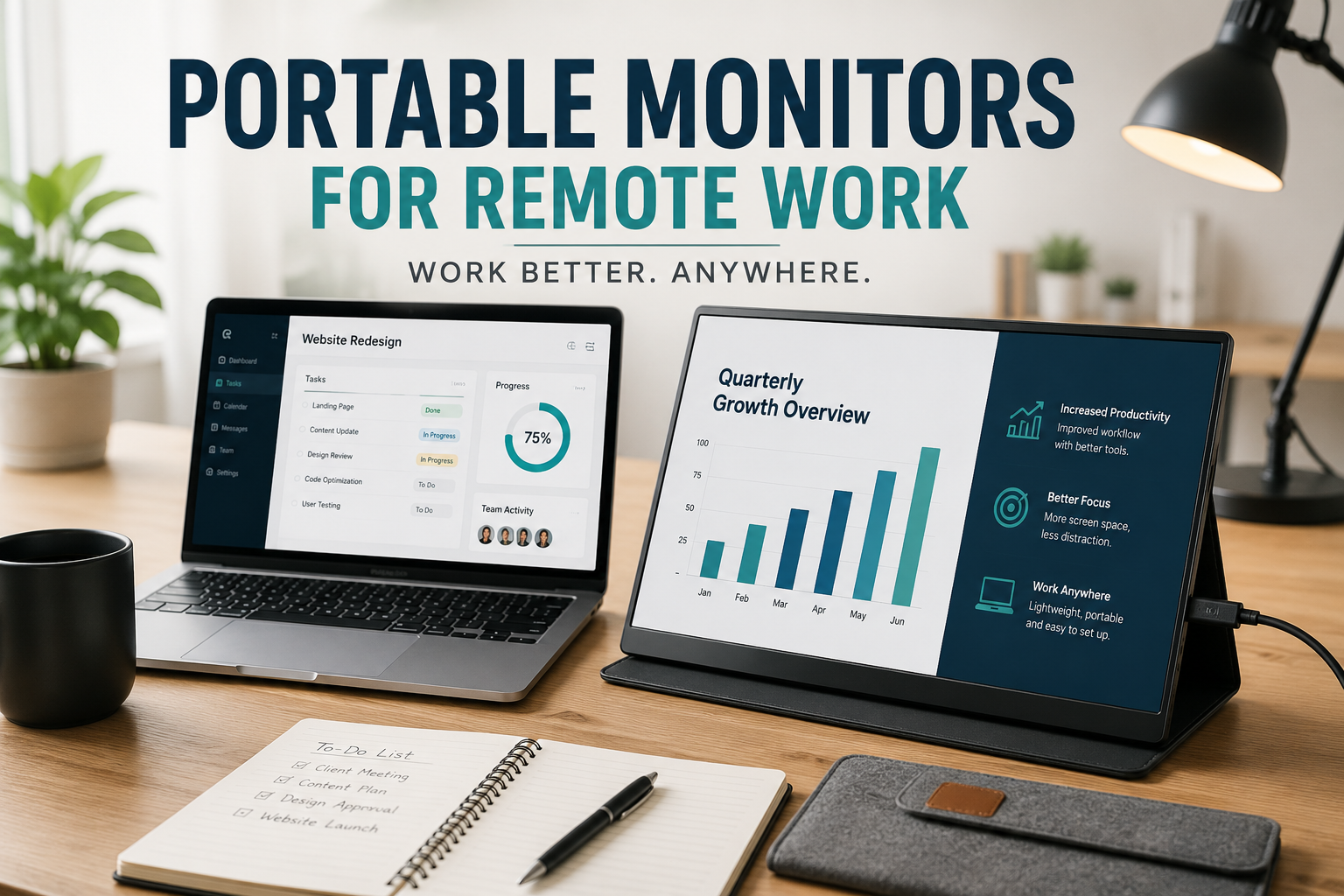
A portable monitor is exactly what it sounds like—a lightweight external display that you can connect to your laptop, tablet, or even some smartphones. Most models are between 13 and 16 inches, making them easy to slip into the same bag as your laptop.
Unlike a traditional desktop monitor, these displays are designed for mobility. Many include a built-in kickstand or protective cover that doubles as a stand, and most newer models connect with a single USB-C cable.
The goal isn’t to replace your main monitor at home. It’s to give you extra screen space wherever you’re working.
Why Remote Workers Love Portable Monitors
The biggest benefit isn’t having a larger workspace.
It’s having two workspaces at once.
Instead of constantly minimizing and reopening windows, you can keep important information visible while working.
For example:
- Keep your video meeting on one screen while taking notes on the other.
- Write articles while research stays open beside you.
- Edit photos with your editing software on one display and file explorer on the second.
- Compare spreadsheets without endless scrolling.
- Monitor project management tools while responding to emails.
These small improvements add up throughout the day.
Situations Where a Portable Monitor Makes a Huge Difference
After trying different work environments, I noticed certain situations where a portable monitor became surprisingly useful.
Working from Cafés
Coffee shops aren’t known for spacious desks.
A portable monitor fits comfortably beside a laptop without taking over the table. It gives enough extra room for multitasking while keeping the setup compact.
Business Travel
Hotel room desks are often tiny.
Instead of struggling with a single laptop screen during a work trip, a portable monitor creates a temporary dual-screen office in just a few minutes.
Shared Home Offices
Many remote workers don’t have a permanent workspace.
If your office is also your dining table or living room, a portable monitor can be packed away after work without filling the room with large equipment.
Freelancing
Freelancers often juggle client messages, invoices, design files, and research simultaneously.
Having two screens makes switching between tasks much less stressful.
Features Worth Looking For
Not every portable monitor is the same. Some focus on portability, while others prioritize image quality.
Here are the features that actually matter.
Screen Size
Most people are happy with:
- 13.3-inch for maximum portability
- 14-inch as a balanced option
- 15.6-inch for comfortable daily work
- 16-inch for users who want more screen space
If you travel frequently, smaller models are easier to carry.
If your monitor stays mostly at home, a larger display is often more comfortable.
Resolution
A Full HD (1920×1080) display is more than enough for most remote work.
Higher resolutions look sharper but may increase battery usage and cost.
USB-C Connectivity
This feature saves a lot of frustration.
Modern USB-C monitors often handle:
- Video
- Power
- Data
through a single cable.
Less cable clutter means quicker setup.
Brightness
If you sometimes work near windows or outdoors, look for brightness around 300 nits or higher.
Dim displays can become difficult to read in bright environments.
Built-In Stand
Some monitors include adjustable stands, while others rely on folding covers.
A sturdy stand makes longer work sessions much more comfortable.
Devices That Work Well with Portable Monitors
Most modern portable monitors support:
- Windows laptops
- MacBooks
- Chromebooks
- Some Android phones
- iPads with USB-C
- Gaming consoles like Nintendo Switch, PlayStation, and Xbox
Always check compatibility before purchasing, especially if you use older laptops with HDMI-only outputs.
Setting Up a Portable Monitor
The setup is surprisingly simple.
Step 1: Connect the Monitor
Use the included USB-C cable if your laptop supports DisplayPort over USB-C.
If not, connect using HDMI and a separate USB cable for power if required.
Step 2: Adjust Display Settings
On Windows:
- Open Display Settings.
- Choose “Extend these displays.”
- Arrange monitors to match your desk layout.
On macOS:
- Open System Settings.
- Select Displays.
- Arrange the monitor positions.
Step 3: Organize Your Workspace
Place your primary task on one screen and supporting information on the other.
This simple habit makes multitasking much easier.
Apps That Work Great with Dual Screens
A second display becomes even more useful when paired with the right software.
Some combinations I found especially practical include:
- Google Docs + Google Chrome
- Microsoft Excel + Microsoft Teams
- Slack + Notion
- Trello + Gmail
- Canva + Pinterest
- Adobe Photoshop + File Explorer
- Visual Studio Code + Browser
- Figma + Documentation
The exact apps don’t matter as much as keeping related tasks visible together.
Common Mistakes People Make
After seeing friends buy portable monitors—and making a few mistakes myself—these issues come up repeatedly.
Buying the Cheapest Model
Very inexpensive monitors often suffer from:
- Poor brightness
- Weak stands
- Limited viewing angles
- Lower color accuracy
Saving a little money upfront sometimes leads to replacing the monitor sooner.
Ignoring Cable Compatibility
Not every USB-C port supports video output.
Always verify your laptop’s specifications before ordering.
Expecting Desktop-Level Performance
Portable monitors are designed for convenience.
They won’t completely replace a large 27-inch office monitor, but they offer an excellent balance between portability and productivity.
Forgetting Ergonomics
Many people place the monitor too low.
A small laptop stand or adjustable monitor stand helps reduce neck strain during long work sessions.
Are Portable Monitors Good for Video Calls?
Absolutely.
One of my favorite setups is keeping the video call on the portable monitor while using the laptop screen for notes or presentations.
It feels much more organized than constantly minimizing meeting windows.
This setup also makes screen sharing less stressful because your meeting controls stay visible.
Battery Life Considerations
Portable monitors draw power differently depending on the model.
Some use power directly from your laptop.
Others include separate power adapters or batteries.
If you’re working away from power outlets for several hours, consider:
- Lowering screen brightness.
- Closing unused apps.
- Carrying a power bank that supports USB-C Power Delivery if your monitor is compatible.
These small adjustments help extend working time.
Who Benefits the Most?
Portable monitors aren’t necessary for everyone.
They’re especially valuable if you are:
- A remote employee attending daily meetings
- A freelance writer or content creator
- A graphic designer
- A programmer
- A digital marketer
- A virtual assistant
- An online tutor
- A student managing research and assignments
- A business traveler
If your work involves switching between multiple windows throughout the day, you’ll probably notice the difference immediately.
Choosing the Right Portable Monitor
Before buying, ask yourself a few simple questions.
How often will you travel?
If portability is your priority, choose a lighter model around 13 or 14 inches.
Will you edit photos or videos?
A monitor with better color accuracy becomes more important.
Do you mostly write, browse, or manage spreadsheets?
A standard Full HD IPS display is usually enough.
Do you have USB-C with video support?
If yes, setup will be much cleaner with a single cable.
Is It Worth the Investment?
When I first bought a portable monitor, I thought it would only help during travel.
Instead, I ended up using it almost every workday.
The biggest surprise wasn’t that I finished work faster—it was that I felt less mentally drained. Constantly switching windows may seem like a small inconvenience, but over an eight-hour workday, those interruptions add up.
A portable monitor won’t magically make you more productive. You still need good habits, a comfortable workspace, and focused work sessions. But if you regularly multitask or spend long hours working remotely, it’s one of those upgrades that quietly improves your day without demanding attention.
For many remote workers, that’s exactly the kind of tool worth having.